This example shows a custom display control that draws an isometric 3D energy plant: an oil field, a refinery, a tank farm, onshore and offshore wind, a solar plant, a fuel station and a marine terminal loading a tanker. The control is built with the Portable API, so the same control runs in the RichClient, the SmartClient and the HTML5 client.
Every input of the plant is a tag, and the plant writes its production back to tags. The main page puts the 3D view next to a control panel built with standard controls.
Download Energy Hub 3D Portable Control Example.zip. It has everything needed to run the example:
Validated with FrameworX 10.1.6 (build 3053), in the RichClient. No devices or databases are needed: the plant simulates itself inside the control. For other versions, see Other FrameworX versions below. |
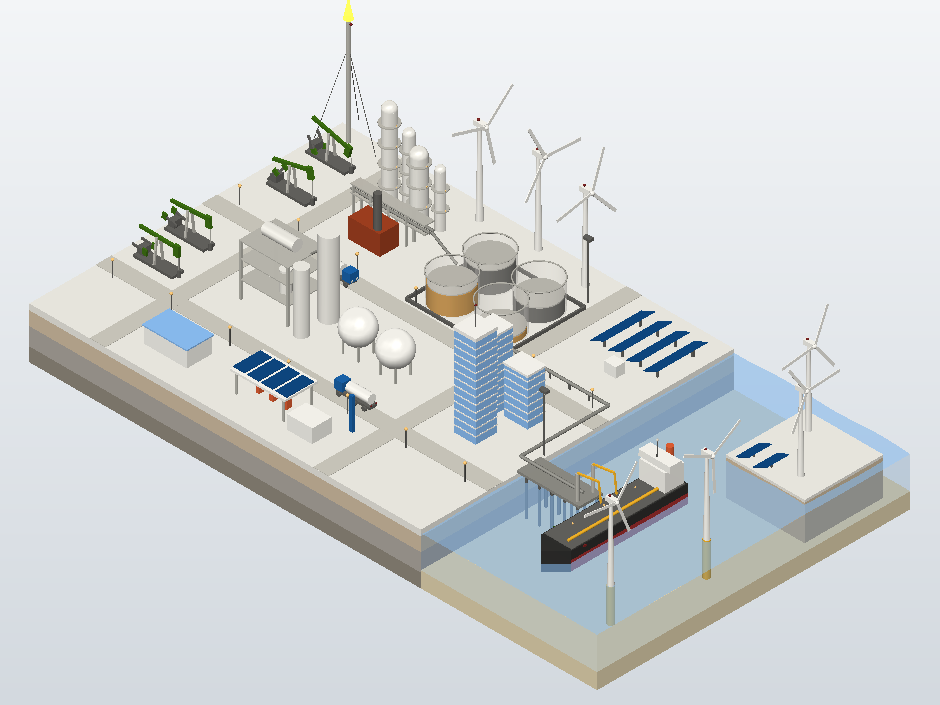
The Energy Hub 3D control at 10:00: oil field, refinery, tank farm, LPG spheres, onshore and offshore wind, solar plant, fuel station and marine terminal.
What the example shows
A portable control: one C# control compiled twice, for the WPF clients and for the browser, and listed in the Components panel like a built-in control.
A 3D scene with 11 clickable zones. Pumpjacks, wind turbines, solar trackers, trucks, loading arms and the tanker move; tank levels and the tanker load follow a small simulation inside the control.
Tag links in and out. The control reads 11 tags (time of day, wind, well rate, switches, lights, alarm zone) and writes 9 (power, oil rate, tanker load, tank levels, the zone the operator clicked).
A day and night cycle. Lights, floodlights, red aviation lights and the flare glow follow the hour; a server script task can run the clock.
A control panel made only of standard controls: Slider, ToggleSwitch, ComboBox, TextBlock and LinearGauge, all bound to the same tags.
Install the control
The control is not part of the product, so it goes into the installation before the solution opens.
Close the Designer and every client.
Unzip the download and copy the contents of
Control for FrameworX 10.1.6\fx-10\into your installation'sfx-10folder (by defaultC:\Program Files\Tatsoft\FrameworX\fx-10\), keeping the folders:WpfControls\T.Portable.Controls.TEnergyHub3DView.dllHTML5\ExtensionControls\T.Portable.Controls.TEnergyHub3DView.dllHTML5\Libraries\EnergyHub3D\(three.js and the plant scene)
The folders are under Program Files, so copying may require administrator rights.
Open the Designer and the solution Energy Hub 3D Portable Control Example.dbsln. The control is listed in the Components panel under Viewer as EnergyHub3DView.
Run the solution
Copy
Energy Hub 3D Portable Control Example.dbslnto any folder (for exampleDocuments\FrameworX\Solutions) and open it in the Solution Center.In the Designer, go to Runtime > Startup and click Run Startup (see Runtime Startup Reference). The MainPage opens with the plant at 10:00 and wind at 9 m/s.
Try it yourself
Drag Hour of day to 21. The scene turns to night: street lamps, building windows, floodlights over the tank farm, the refinery and the pier, ship navigation lights and blinking red aviation lights. Solar power drops to 0 MW.
Turn on Day cycle. The clock advances one hour every 4 seconds, a full day in about a minute and a half.
Move Wind speed. The turbines start at 3 m/s, reach their rated 3 MW each (21 MW in total) at 12 m/s, and stop at 25 m/s to protect themselves, as real turbines do.
Select TankFarm in Alarm zone. The tank farm blinks red in the 3D view.
Turn off Turbines, Trucks or Offshore, or set Lights to On or Off.
Drag inside the 3D view to rotate it and use the mouse wheel to zoom. Hover a zone to see its values; click it to write its id to the
SelectedZonetag.
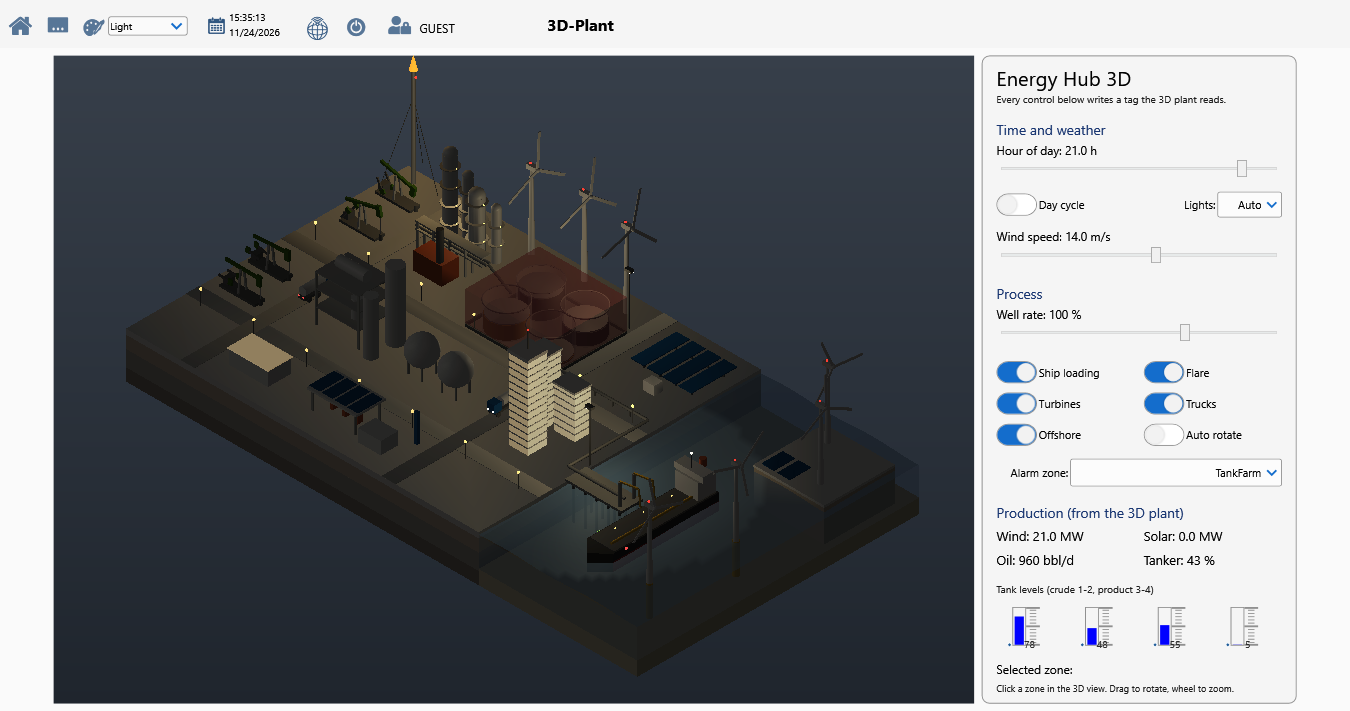
The main page in runtime at 21:00, wind at 14 m/s, tank farm in alarm. The panel on the right writes the tags the plant reads; the readouts and gauges show what the plant writes back.
Tags
All tags are under EnergyHub. The 3D control links to each of them in its configuration panel (double-click the control in the Designer).
Tag | Type | Control property | Meaning |
|---|---|---|---|
| Double | Hour of day | 0 to 24. Sun position, solar output and night lights. |
| Digital | (none) | 1 = the DayCycle task advances HourOfDay. |
| Double | Wind speed | m/s. Cut-in 3, rated 12, cut-out 25. |
| Double | Well rate | Pumping rate of the oil wells, 0 to 150 %. |
| Digital | Ship loading | 1 = loading arms connected, the tanker loads from the product tanks. |
| Digital | Flare on | 1 = refinery flare lit. |
| Digital | Turbines running | 0 = all wind turbines stopped. |
| Digital | Trucks running | 0 = tanker trucks stop. |
| Digital | Show offshore | 0 = hides the island and the offshore turbines. |
| Digital | Auto rotate | 1 = the camera orbits slowly. |
| Integer | Lights | 0 = automatic by hour, 1 = always on, 2 = off. |
| Text | Alarm zone | Zone ids that blink red, comma separated. |
| Double | Wind power (output) | Total wind generation, MW. |
| Double | Solar power (output) | Solar generation, MW. |
| Double | Oil rate (output) | Oil production, bbl/d. |
| Double | Ship load (output) | Tanker load, %. A full tanker leaves after 8 seconds and an empty one berths. |
| Double | Tank 1 to 4 (output) | Tank levels, %: tanks 1 and 2 hold crude, tanks 3 and 4 hold product. |
| Text | Selected zone (output) | Id of the zone the operator clicked. |
Zone ids: OilField, Refinery, CrackingUnit, TankFarm, LpgSpheres, WindFarm, SolarPlant, OperationsCenter, FuelStation, MarineTerminal, OffshoreWind.
How it is built
One control, two scenes
The control class T.Portable.Controls.TEnergyHub3DView implements IPortableControl. Its source file is linked into two projects. The WPF build draws the plant with WPF 3D (Viewport3D). The HTML5 build, compiled with OpenSilver, hosts the same plant drawn with three.js; it declares Libraries/EnergyHub3D/three.min.js and energyhub3d.js through IHTML5ControlDependencies, so the web client loads them before the control renders. Both scenes share the layout, the simulation and the zone ids.
Tag links
Each input is a link property (a constant, a tag or an expression) set in the control's configuration panel. When the display opens, StartRuntime() turns each link into an ObjectReference and registers a change handler that pushes the new value into the scene. The outputs are tag links too: the control writes them with SetValueAsync twice a second, only when a value changed.
Day cycle
A server script task runs every second and moves the clock while DayCycle is on:
if (@Tag.EnergyHub/Controls/DayCycle == 1)
{
    double h = @Tag.EnergyHub/Controls/HourOfDay + 0.25;
    @Tag.EnergyHub/Controls/HourOfDay = h >= 24 ? h - 24 : h;
} |
Other FrameworX versions
The HTML5 build of a portable control must use the same OpenSilver version as the FrameworX web client, so the compiled control in the download is for FrameworX 10.1.6 (build 3053). For another version, rebuild it from the Source folder of the download:
Find the commit at the end of the ProductVersion of
fx-10\HTML5\_framework\OpenSilver.dllin your installation, and set the OpenSilver package whose name ends with that commit inTEnergyHub3DView.HTML5.csproj.Build both projects in Release and copy the two DLLs and the
web\EnergyHub3Dfiles as described in Install the control.
The build steps and rules are in Portable API Reference.
Related
Portable API Reference: build a control that runs in the WPF clients and in the browser.
Custom Control API Reference: choose between WPF, Blazor and Portable controls.
3D Visualization Reference: 3D scenes in WPF displays with the built-in 3D host.
three.min.js is three.js r128, MIT license; the license file is in the download.
In this section...