FrameworX renders 3D inside a Display by hosting a standard WPF Viewport3D scene in a WPF Control. You point a WPF Control at the shipped 3D host assembly (T.WpfControlParent3d.dll), build or load the 3D scene in the Display code-behind, and drive it from tags. Typical uses: robot and machine kinematics, equipment and skid models, digital-twin style visuals, and 3D representations of a process.
Autodesk 3D Studio ( |
Requirements / Platform support
This feature runs only on Windows (not Multiplatform), on the RichClient and SmartClient clients (WPF Only Displays). It is not available in the HTML5 / WebAssembly client — the 3D scene is an HWND-hosted WPF surface. See WPF Client overlay limitations (HWND-hosted controls) for how this control shares airspace with other WPF visuals.
How it works
- 3D host control — a WPF Control whose type is
TWpfControlParent3d(fromT.WpfControlParent3d.dll). It exposes aContentproperty you set to a WPFViewport3D. - The 3D scene — standard WPF 3D (
System.Windows.Media.Media3D): aViewport3Dwith a camera (PerspectiveCamera), lights, andModel3Dgeometry. Geometry can be built in code or loaded from a model file. - Loading a model file — store the asset in the solution folder and read it at runtime. Because file access is server-side, a Server Script Class reads the file into a stream and returns it. The reference tests used Autodesk 3D Studio (
.3ds) files imported with the Ab3d.PowerToysReader3ds. - Driving from tags — the Display code-behind lifecycle updates the scene.
DisplayOpeningbuilds the scene once;DisplayIsOpenruns periodically (IsOpenIntervalms) and applies tag values to transforms (rotation / translation) or the camera. - Interaction — bind on-screen HMI controls (sliders, buttons) to the driving tags; optionally handle mouse clicks on 3D objects directly in the scene.
Basic steps
- Add the host control — Displays / Draw / Viewer / WPF Control, select the 3D host DLL, click on the canvas to place it, and give it a name (for example
robotArm). - Create driving tags — for example one
Doubletag per joint or axis. - Code-behind
DisplayOpening—GetControl("robotArm"), create aViewport3D, assign it to.Content, then load or build the scene. - Code-behind
DisplayIsOpen— read the tags and apply transforms / camera updates. - Add HMI controls — sliders or buttons bound to the driving tags.
- Place model assets in the solution folder and load them via a server script using
Info.Solution.SolutionPath.
Code patterns
Host a viewport and load a scene in DisplayOpening:
var host = CurrentDisplay.GetControl("robotArm") as T.WpfControlParent3d.TWpfControlParent3d;
var viewport = new Viewport3D();
host.Content = viewport;

// Read the model on the server, then parse it into the viewport
System.IO.Stream model = @Script.Class.LoadFile.Get3dsModel(@Info.Solution.SolutionPath + "robotarm.3ds");
// e.g. new Ab3d.Reader3ds().ReadFile(model, viewport);
// then position the PerspectiveCamera
|
Server-side file read (a Server Script Class method):
public MemoryStream Get3dsModel(string fileName)
{
    MemoryStream ms = new MemoryStream();
    using (FileStream stream = new FileStream(fileName, FileMode.Open, FileAccess.Read))
    {
        byte[] bytes = new byte[stream.Length];
        stream.Read(bytes, 0, (int)stream.Length);
        ms.Write(bytes, 0, bytes.Length);
    }
    ms.Seek(0, SeekOrigin.Begin);
    return ms;
}
|
Apply a tag to a transform in DisplayIsOpen (update only when the tag changes):
if (oldSlider1 != TConvert.To<int>(@Tag.slider1))
{
    oldSlider1 = TConvert.To<int>(@Tag.slider1);
    transformer.RotateObject("BaseMotor",
        new AxisAngleRotation3D(new Vector3D(0, 1, 0), oldSlider1));
}
|
Tips and constraints
- Keep the heavy scene build in
DisplayOpening(runs once) and only light per-frame updates inDisplayIsOpen. - Cache last-written values and update a transform only when its tag changes — this avoids needless redraws.
- Use
Info.Solution.SolutionPathfor asset paths so the solution stays portable. - WPF-only: provide a 2D fallback for any screen that must also run in the HTML5 client.
Reference example
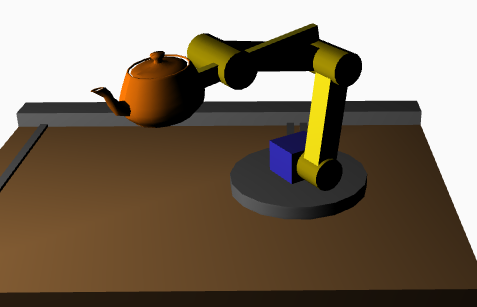
The RobotArm3D solution is the worked example: five sliders drive four joint rotations plus a gripper translation on an Autodesk 3D Studio (.3ds) model, loaded through a LoadFile server class. It demonstrates the full pattern end to end.
Download Example: Display-RobotArm3D.zip |
Related
- WPF Control Reference — the generic WPF Control element this feature is built on.
- WPF Client overlay limitations (HWND-hosted controls) — the shared-airspace constraint for HWND-hosted controls.
- Display code-behind and lifecycle methods (
DisplayOpening/DisplayIsOpen/DisplayClosing). - Scripts — Classes (server-side file access).