This demo grounds Local AI in a real plant model: an ISA-88 mini-pharmaceutical site whose operators ask the AI plain-language questions and get answers anchored in live tag values, alarm state, and batch context.
How-to → Examples → Architecture → Local AI Ontology Demo
Download the demo files: This demo showcases, among other features, the following:
|
Summary
Technical Information
This demo showcases, among other features, the following:
- Ground a chat panel in live plant data so operator questions get plant-specific answers, not generic LLM replies.
- Read AI-generated annotations directly on alarms and trend points.
- Build the entire UNS from a hand-crafted ISA-88 RDF/OWL ontology in one click.
- Walk a typed Asset Tree from Enterprise down to individual stirrer and heater modules.
- Drive four operator displays from one shared
SelectedAssettag: Canvas with chat, Dashboard, Alarms, Trends. - Wire ML-based anomaly detection on a single tag and read the score from any context.
- Round-trip the entire UNS to RDF/JSON for archive, diff, or graph-store upload.
- Run end to end on a single Windows machine with a local LLM endpoint and zero cloud dependency in the inference path.
The Ontology Layer
A good starting point for solutions that need a typed, hierarchical model is to import the ontology from a graph file rather than author it row by row in Designer.
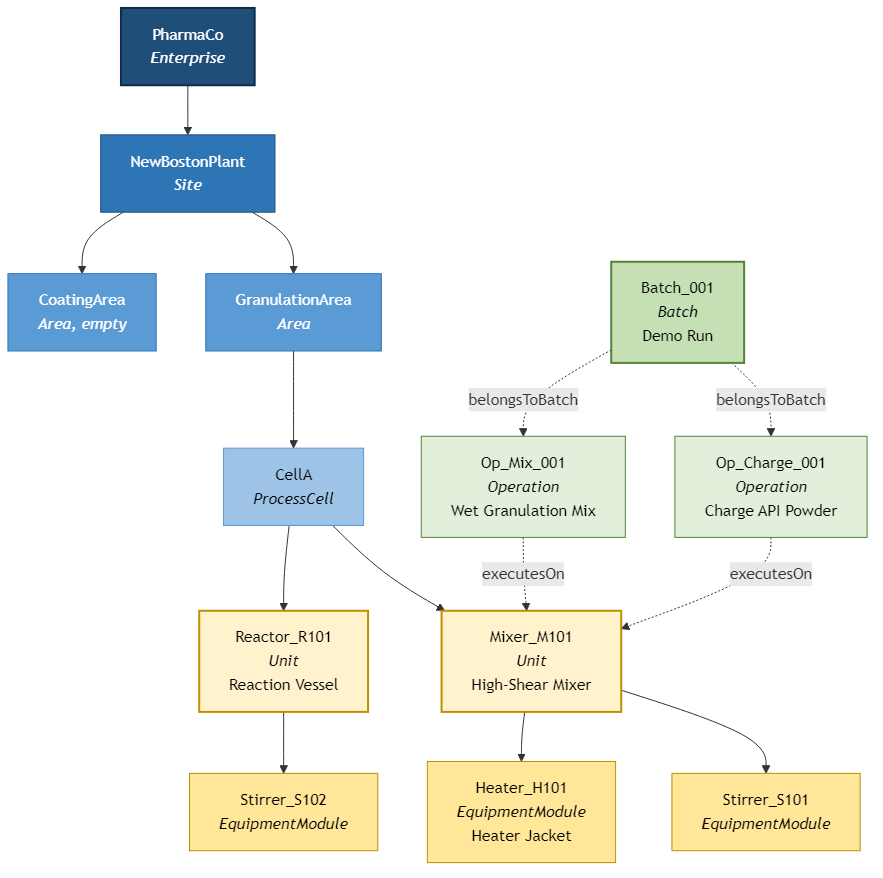
For this demo, we picked ISA-88 as the source of structure. ISA-88 is an industry standard for batch-control plant models, and it gives us a clean class hierarchy out of the box: Enterprise, Site, Area, ProcessCell, Unit, EquipmentModule, plus the procedural classes Operation and Batch. We hand-crafted a small RDF/OWL file (Local AI Ontology Demo Source.rj, 21 KB) that defines those eight classes, the containment predicates between them (hasSite, hasArea, hasProcessCell, and so on), and a fictional pharma site populated with one batch in progress.
The importer reads the ontology and materializes the FrameworX UNS in a single pass:
- Eight UDTs with full ontology metadata:
DisplayText,Labels,SourceIri,BaseUserType, plus a free-formAttributescolumn for any annotation we did not promote to a first-class field. - Thirteen typed instance tags under the
/Attrconvention —PharmaCo/Attr,PharmaCo/NewBostonPlant/Attr, and so on down toMixer_M101/Heater_H101/Attr. - Thirteen Asset Tree folders auto-created from the slashed paths. We did not author the folders directly; the importer materialized them from the containment graph.
- Twenty Reference edges populated at the second pass: the containment network plus the
executesOnandbelongsToBatchOperation links.
Click Relationship Graph on the Asset Tree toolbar at any time. A Markdown file with embedded Mermaid diagrams opens, showing the eight UDTs as a class diagram with their Reference members, the thirteen tags as Asset Tree nodes with /Attr leaves, and the cross-links between them. Hover any element to see its SourceIri, the OWL IRI it came from.
The ontology source file stays pure ISA-88, so it is portable. Take any reference ontology you already trust (your corporate asset model, a vendor template, an open standard such as ISA-95 or BFO) and import it the same way. The demo's import workflow does not depend on ISA-88 specifically. |
The Operational Layer on Top of the Ontology
Pure ISA-88 defines structural classes: Enterprise, Site, Unit. It does not define the SCADA members operators read at runtime: temperature, pressure, speed, setpoint, running state, output. Those belong to the deployment, not to the standard.
We kept the two layers cleanly separated. The ontology source file stays pure, free of SCADA details, so it round-trips back to RDF without leaking deployment-specific members. The operational members are added in Designer after the import, on top of the materialized UDTs:
- On
S88_Unit, we addedCapacity_L,Temperature_C(range 0–150 °C),Pressure_bar(0–10),Speed_rpm(0–600),Setpoint(default 60), and aRunningBoolean. - On
S88_EquipmentModule, we addedRunning,Output(0–100 %),Setpoint(default 50), andCurrent_A(0–30 A). - Each member carries its units, scale range, format string, and start value. Bind directly into displays without further work.
Because the operational members live on the UDTs and not on the instances, every S88_Unit instance automatically inherits Temperature, Pressure, Speed, Setpoint, and Running. We did not author thirteen sets of fields for thirteen tags. We authored two UDTs.
The pattern generalizes. Bring your reference ontology for the asset structure; layer your operational members on top in Designer. The ontology does what ontologies are good at (typed structure); the runtime members do what runtime members are good at (live values).
The Four Operator Displays
One asset tree on the left, four content displays on the right, all driven by the same SelectedAsset client tag. Pick an asset, every display retargets to it. Switch displays, the selection persists. We chose this pattern so the operator builds a single mental model of "what asset am I looking at right now" and the page only changes the lens.
Canvas with Chat Panel
The headline display. We laid out a process diagram of Cell A on the left side of the canvas, and docked an AI chat panel on the right. The diagram shows Mixer M-101 with its Heater Jacket and Stirrer modules, Reactor R-101 next to it, live values bound to the operational members of each unit. The chat panel takes operator questions in plain language and replies anchored in the same tags the operator can see.
Type "Why is High-Shear Mixer M-101's temperature climbing?" into the chat. The reply names the Heater output, the Stirrer cycling pattern, the operation in progress, and the anomaly score, in two short paragraphs.
Dashboard
A responsive grid of metrics for the selected asset. We built one dashboard layout that works at every level of the hierarchy because the underlying UDTs share consistent member names. When the selection is at the Site or Area level, the dashboard summarizes child-equipment status. When the selection lands on a Unit or Module, it shows that one unit's live numbers: Temperature, Pressure, Speed, Setpoint, Running state.
Alarms with AI-Generated Annotations
The standard alarms grid plus an annotation column. When an anomaly fires, a server-side script calls the AI for a two-sentence operator-facing explanation, and the reply lands as an annotation on the active alarm row. Operators read the explanation in their own language, no runbook lookup. We covered the wiring under Server-Side AI for Annotations below.
Trends with Annotation Pins
Time-series chart for the selected asset, with the same AI-generated annotations pinned to the trend points where the anomaly was detected. Hover an annotation pin, see the AI's reply inline. We used this surface to make a temperature excursion explainable to a colleague three hours after the fact, without going back to the alarm history.
Grounding the Chat in Live Plant Data
A chat panel that returns generic LLM answers is not a plant tool. The reason this demo's chat is useful is that every reply is grounded: the model receives, on every turn, the live values of the selected asset's operational members, the active alarm state, the Operation and Batch the asset is currently part of, and the AnomalyScore for the asset.
We wired the grounding once, at the script that builds the chat prompt. The chat panel passes the operator's question and the current SelectedAsset; the script reads the asset's live values from the UNS, walks one level up to find the parent ProcessCell and its peers, looks up the active Operation and Batch, and assembles a system message that gives the model everything it needs to reply specifically. The model is OpenAI-compatible and runs locally by default.
Four scripted prompts on the demo's Canvas display walk what grounding looks like in practice:
Why is High-Shear Mixer M-101's Temperature Climbing?
The reply names the Heater Jacket output, the Stirrer cycling pattern, the operation currently running on the Mixer (a wet-granulation mix step in Batch B-001), and the AnomalyScore reading. Two short paragraphs. No call to a generic knowledge base.
What Does the ML Model Say About It?
The reply quotes the AnomalyScore value, the model's confidence band, and the input features that contributed most to the score. The chat is reading the same anomaly-detection model that powers the alarm annotations.
What Other Equipment Is in the Same Process Cell?
The reply walks one level up the asset hierarchy and lists the peer units (Reactor R-101 and its Stirrer module). The AI reads the typed asset tree directly; it knows what a ProcessCell is because the ontology said so.
Is There an Active Batch Running, and What's It Doing?
The reply names Batch B-001, the two operations linked to it (Op_Charge_001 and Op_Mix_001), the unit each operation executes on, and the batch state. Pulled from the Batch and Operation tags the ontology materialized.
Server-Side AI for Annotations
The chat panel is one consumption pattern for Local AI. Server-side AI calls from a Script Task is the other. We wired one server-side AI call into this demo: when the AnomalyScore on a Unit crosses threshold, a script asks the AI for a two-sentence explanation and writes the reply as an annotation on both the active alarm and the trend point at that timestamp.
Two consequences:
- The alarm grid carries operator-language explanation, not just code and severity.
- The trend chart preserves that explanation in place, so a shift handover three hours later still sees what happened and why.
The annotation pattern works for any tag with a numeric or Boolean signal: temperature excursion, motor stall, batch-state hang. Wire one Script Task per signal; the script body is roughly twenty lines of C# or Python.
The AnomalyScore itself is produced by an ML.NET model trained on historical data, following the same pattern we used in the BottlingLine ML Demo. The chat and the annotation script both read the score from the same tag: one model, two consumption surfaces.
The Display chat panel and the server-side script call share one |
How to Run It
Open the solution in Designer. The full UNS is already populated, the displays already wired, the AnomalyScore script already in place. Two steps to a live demo:
- Confirm a local LLM endpoint is reachable. The demo's
ModelSettingsdefaults expect an OpenAI-compatible endpoint athttp://localhost:11434/v1/chat/completionswith modelqwen2.5:7b-instruct. The fastest way to set this up is the install script that ships with FrameworX: runAISetup\Install-LocalAI.ps1. The script checks for an existing install, pulls the runtime and the model only if needed, and verifies the endpoint with a smoke test. See Local AI for the full install reference. - Start the solution under the Development profile. The four displays open, the asset tree is populated, the chat panel is ready. Pick Mixer M-101 in the asset tree, open the Canvas + chat display, and ask the first prompt.
To customize the ontology for a different plant or equipment hierarchy, replace Local AI Ontology Demo Source.rj with your own RDF/JSON file and re-import. The displays, the AnomalyScore script, and the chat prompts work against any UDT that exposes the same operational members.
Reference
Key facts about the demo solution:
- Target framework: .NET Framework 4.8.
- Layout template: Wide.
- Source ontology:
Local AI Ontology Demo Source.rj(21 KB, W3C RDF/JSON). - Import policy:
Local AI Ontology Demo Policy.json(one override,namedIndividualThreshold: 0, to keep typed individuals as tags rather than enumerations). - UDTs: 8 ISA-88 classes (Enterprise, Site, Area, ProcessCell, Unit, EquipmentModule, Operation, Batch) plus support types.
- Tags: 13 typed instance tags under the
/Attrconvention; one client-domainSelectedAssettag drives all four displays. - Asset Tree: 13 folders auto-created from the containment paths. No manual folder writes.
- Annotations: server-side Script Task watches AnomalyScore and writes AI-generated explanations back to the active alarm and the corresponding trend point.
- LLM endpoint: configurable via
SolutionSettings.ModelSettings. Default is a local Ollama instance running Qwen 2.5 7B-Instruct; any OpenAI-compatible endpoint works. - Cloud dependency in the inference path: none. After the local LLM is installed, every chat call and every annotation call stays on the plant network.
Related
- Local AI. The Local AI feature reference: install, ModelSettings, Display chat action, server-side AI call from scripts.
- AI Integration. Parent page covering all AI surfaces in FrameworX.
- Industrial Ontology Integration How-to. Full reference for the ontology import / export pipeline.
- Import an OWL/RDF ontology into your UNS. Wizard and MCP reference for the import step.
- Export your UNS to RDF/OWL/GraphDB. Export format selector and round-trip guarantees.
- Generate a visual report of your UNS. Relationship Graph button reference.
- BottlingLine ML Demo. Companion demo for the ML.NET anomaly-detection pattern used for AnomalyScore.