Configure your solution’s data foundation to build a knowledge graph
How-to Guides → The Four Pillars How-to → Data Foundation How-to → Unified Namespace How-to → Model Relations How-to
Wire typed graph relations between Tags using Reference members and StartValue, optionally enriched with the /Attr dual-shape pattern. The result is a UNS that doubles as a queryable knowledge graph — visualizable, AI-groundable, and round-trippable with industrial ontologies.
Version 10.1.5+
Scope of this page
This is a step-by-step recipe. It assumes you already understand UserTypes, Tags, and the Asset Tree from the Unified Namespace How-to. For the concepts and column reference, see UNS UserTypes Reference, UNS Tags Reference, and Industrial Ontology Integration How-to.
How the relation is made
In a knowledge graph, nodes are entities and edges are typed relations between them. In FrameworX:
- Each node is a Tag — typically of a UserType.
- Each edge is a UDT member declared with Type = Reference on the source Tag's UserType. Two fields configure it:
- Parameters — the target UserType (which kind of Tag the edge may land on).
- StartValue — the target Tag's path (which specific Tag the edge resolves to at startup). For ordinary equipment this is the tag itself, e.g.
Plant1/Tank_T1.
That's the whole mechanism. Steps 1 and 2 build the edge for the Pump → Tank example. Step 3 adds the optional /Attr metadata sibling — a separate Tag carrying static design-sheet literals alongside the live equipment Tag.
The example
A two-equipment water-treatment line:
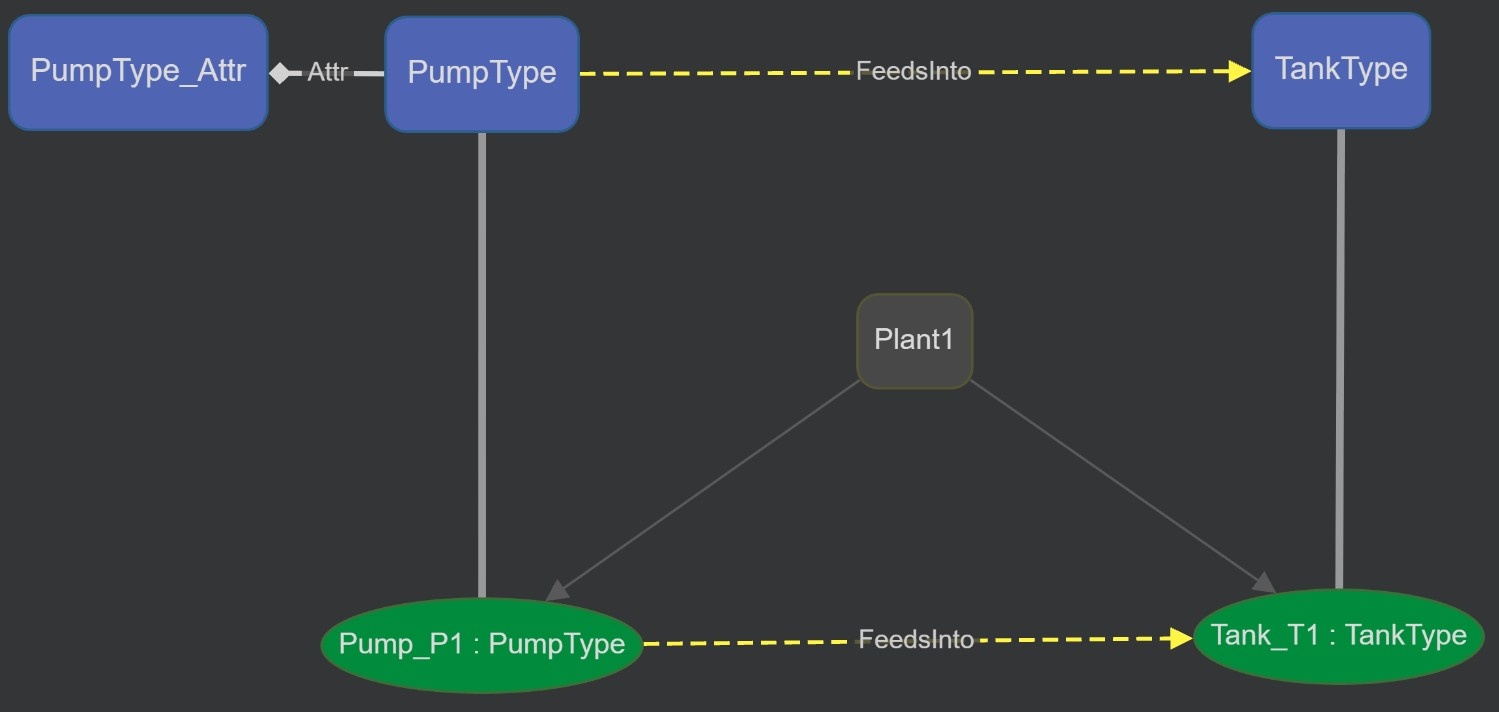
Plant1/Pump_P1 --(FeedsInto)--> Plant1/Tank_T1
Pump_P1 fills Tank_T1. Each tag carries live process variables. You will add a typed graph relation between them and, optionally, a /Attr sibling carrying static metadata. End state: a runnable solution and a Knowledge Graph that renders the relation visually.
Prerequisites
- A solution open in the Designer with the Unified Namespace module visible.
- Familiarity with creating UserTypes and Tags — see Unified Namespace How-to.
Step 1 — Create the UserTypes
Two UDTs. The interesting member is FeedsInto on PumpType: declared with Type = Reference, it becomes the graph edge.
PumpType
Member | Type | Parameters | StartValue | Notes |
|---|---|---|---|---|
Flow | Double | Live process value (m³/h) | ||
Status | Text | stopped | Initial state at startup | |
FeedsInto | Reference | TankType | Plant1/Tank_T1 | Typed pointer at the downstream Tank. See Step 2. |
TankType
Member | Type | StartValue | Notes |
|---|---|---|---|
Level | Double | Live process value (%) | |
Status | Text | idle | Initial state at startup |
Create both via Unified Namespace → UserTypes → New, then add the members in the grid.
For the canonical member-column definitions (every column, every constraint), see UNS UserTypes Reference.
Step 2 — Wire the relation via StartValue
Already done in "Step 1 - Create the UserTypes", this step is only for explanation. A Reference UDT member needs two fields to declare a graph edge. Set them in the member grid:
Field | Purpose | Example value |
|---|---|---|
Parameters | The target UserType — what kind of Tag this Reference is allowed to point at. |
|
StartValue | The target Tag path the Reference resolves to at runtime startup. |
|
When the runtime starts, every PumpType instance gets its FeedsInto.Link resolved to Plant1/Tank_T1 automatically. The FrameworX object model now has a typed edge from Pump_P1 to Tank_T1.
Which tag do you target?
A Reference points at the tag that carries the target entity's identity.
- For ordinary equipment, that is the equipment tag itself —
Plant1/Tank_T1. The Reference's Parameters type (TankType) must match the target tag's UserType (or a subclass), so the liveTankTypetag is the correct target. - Only when you use the ontology dual-shape — where an entity's identity lives on its
Attrtag, typically imported from OWL/RDF — do you target thatAttrtag (e.g.Plant1/Tank_T1/Attr). On export the trailingAttrleaf is dropped, so either way the OWL IRI reflects identity, not storage layout. See UNS Asset Tree Reference and Industrial Ontology Integration How-to.
Per-instance override — the usual way (recommended)
StartValue set on the UDT member is the default for every instance of that UserType — all PumpType tags point at the same target. In most solutions you instead set the target per instance, two ways:
- From the Asset Tree — open Unified Namespace → Asset Tree, right-click the Reference member on the tag, choose Properties, and pick the tag it points to.
- From the Tags grid — open Unified Namespace → Tags, select the tag, then under Symbol and Properties Mapping → Edit Properties of member select the Reference member, click the gear icon, and pick the tag it points to.
The per-instance value overlays the type default for that instance only; other instances still fall back to the UDT-level default. The configured target appears in the Asset Tree next to the Reference member, shown as: <target>.
Step 3 — (Optional) Add the Attr metadata tag
What is Attr?
Attr is just a normal Tag — usually of a UserType — that holds static information describing the entity it belongs to, whether that's a folder (Plant, Site, Area) or a piece of equipment. The name Attr is a convention we recommend for keeping your Unified Namespace organized, and you can use it at any level of the Asset Tree.
In this example we add Attr to the equipment — the pump's nameplate. The Attr dual-shape stores static, design-sheet-style metadata on a separate tag named Attr, sitting next to the live equipment tag. The live tag carries dynamic process variables; the Attr tag carries fixed literals like Manufacturer, ModelNumber, InstallationDate.
When to use which shape:
Use case | Pattern |
|---|---|
Plain process equipment, no descriptive metadata | Live tag only |
Conceptual containers (Enterprise, Site, Area) — folders, not equipment |
|
Equipment + design-sheet metadata + ontology round-trip | Both (live tag + |
For Pump_P1 to carry both live process data AND nameplate metadata, declare a second UDT:
PumpType_Attr
Member | Type | StartValue | Notes |
|---|---|---|---|
Manufacturer | Text | Acme Pumps | Fictional vendor — static literal |
ModelNumber | Text | AP-3000 | Fictional model — static literal |
MaxFlowRate | Double | 50 | Design rating (m³/h) |
Then create a tag at Plant1/Pump_P1/Attr of type PumpType_Attr (see Step 4).
Containers (Plant, Site, Area) use the same Attr — standing alone
A folder like Plant1 carries no metadata of its own. To give the plant an identity and description, add a single Plant1/Attr tag — for example of a SiteType UDT with Description, Location, and ISA-95 level. There is no live Plant1 tag: a container isn't equipment, so it has Attr only. The same holds one level up for a Site or Enterprise folder.
How this maps to OWL
On RDF/OWL export the pieces map like this: each UserType becomes an OWL class; a Reference member becomes an owl:ObjectProperty (its Parameters type is the range); a scalar member (Double, Text, …) becomes an owl:DatatypeProperty; each Tag becomes a NamedIndividual. The ISA-95 / ISA-88 levels — Enterprise, Site, Area, Batch — are folders; the folder's Attr tag becomes that level's individual, and folder nesting emits containment edges (hasChild, or the policy's ordered ContainmentPredicates). The trailing Attr leaf is dropped on export so every IRI reflects identity. For the full mapping and the predicate policy, see Industrial Ontology Integration How-to and RDF Triples and the IOF.
Step 4 — Create the instance Tags
In Unified Namespace → Asset Tree, create the folder Plant1 and add three tags inside it:
Tag path | Type | Notes |
|---|---|---|
| PumpType | Live pump — carries the FeedsInto edge |
| PumpType_Attr | Optional — static nameplate metadata (Step 3) (this will be a member inside of "PumpType_Attr" UserTypes) |
| TankType | Live tank |
Either right-click the Plant1 folder → New Tag and set the Type to the UDT, or paste rows into the Tags grid with the Name and Type columns set. The Asset Tree auto-creates the folder hierarchy from the slashes in the tag path.
The resulting Asset Tree:
Plant1                      (folder)
+-- Pump_P1                 PumpType        live pump  (FeedsInto -> Tank_T1)
|   +-- Attr                PumpType_Attr   static nameplate metadata
+-- Tank_T1                 TankType        live tank
Step 5 — Verify in the runtime
Start the runtime (F5). With the configuration above, the FrameworX object model now exposes:
@Tag.Plant1/Pump_P1                      <- PumpType instance (live)
@Tag.Plant1/Pump_P1.Flow                 <- Double, live
@Tag.Plant1/Pump_P1.Status               <- Text, live
@Tag.Plant1/Pump_P1.FeedsInto            <- Reference -> Tank_T1
@Tag.Plant1/Pump_P1.FeedsInto.Link       <- "Plant1/Tank_T1"

@Tag.Plant1/Pump_P1/Attr                 <- PumpType_Attr instance (static, optional)
@Tag.Plant1/Pump_P1/Attr.Manufacturer    <- "Acme Pumps"

@Tag.Plant1/Tank_T1                      <- TankType instance (live)
@Tag.Plant1/Tank_T1.Level                <- Double, live
@Tag.Plant1/Tank_T1.Status               <- Text, live
For the full Reference-tag runtime semantics, see UNS Tags Reference → Reference Type.
Step 6 — Visualize with the Knowledge Graph control
- Open Unified Namespace → Asset Tree. Click the Knowledge Graph button at the top of the tree. This regenerates
SolutionSettings.KnowledgeGraphSourcefrom the current UDT + Tag + relation state. - Open or create a Display. From the Components Panel → Charts, drop Knowledge Graph onto the canvas.
- In the control's Properties panel:
- Bind Selected node path to a Tag of type Text (for example
Tag.UI.SelectedNodePath). The control writes the clicked node's full UNS path (dot notation, e.g.Plant1.Tank_T1) into that Tag. - Bind Selected node type to a Tag of type Text (for example
Tag.UI.SelectedNodeType). The control writes the clicked node's UserType name (e.g.TankType) into that Tag.
- Bind Selected node path to a Tag of type Text (for example
- Run the Display. Clicking a node updates the two bound Tags. Wire those Tags to a ChildDisplay source, a Trend Chart, or any other control to drive type-aware drill-down.
The expected render for this example:
   +----------+   FeedsInto    +----------+
   | Pump_P1  | -------------> | Tank_T1  |
   | PumpType |                | TankType |
   +----------+                +----------+
You now have the complete loop: typed UserTypes, a Reference edge, live instance tags, optional Attr metadata, and a rendered Knowledge Graph. For control configuration depth — render modes, source regenerators, HTML5 / OpenSilver parity, design-time preview — see KnowledgeGraph Control Reference.
What this enables
Once the UNS carries Reference edges (and, optionally, Attr metadata tags), the same three building blocks — Reference members, StartValue, dual-shape — unlock four capabilities:
- Visualize the plant graph with the Knowledge Graph Display control (Step 6).
- Ground AI queries — the Local AI assistant walks Reference edges to answer questions like "what feeds into this tank?" or "trace upstream of Pump_P1".
- Export to RDF / OWL / JSON-LD / Turtle / N-Triples — see Export your UNS to RDF/OWL/GraphDB. The trailing
Attrleaf is dropped on export so OWL entity IRIs match the source ontology. - Re-import enriched ontologies from external authoring tools via Industrial Ontology Integration How-to, with the
SourceIricolumn providing the join key for diff and overlay.
Troubleshooting
Reference member shows no value at runtime. Confirm Parameters is set to the target UserType name (case-sensitive), StartValue is the path of an existing Tag, and the target's UserType matches Parameters (or a subclass). The target must exist when the runtime starts; references to missing tags resolve to null.
Knowledge Graph control shows no edges. Click the Knowledge Graph button on the Asset Tree to regenerate KnowledgeGraphSource, or invoke TK.GenerateUnsVisual() from a Script. Edits to UDTs or Tags only refresh the source on the next regeneration; auto-refresh applies on subsequent renders.
Multiple PumpType instances all feed the same Tank. That is expected — UDT-level StartValue is the shared default. To point one instance elsewhere, set the Reference target on that specific tag; the per-instance value overlays the type default for that instance only. See UNS Asset Tree Reference → troubleshooting.
OWL round-trip drops the relation. If you used the ontology dual-shape, the Reference must target the identity-bearing node — the Attr tag. The exporter drops the trailing Attr leaf so the OWL IRI is clean. For plain equipment with no Attr tag, target the equipment tag itself. See Industrial Ontology Integration How-to.
See also
- Unified Namespace How-to — basic UNS configuration (prerequisite).
- UNS UserTypes Reference — UDT member-column definitions.
- UNS Tags Reference — Reference Type runtime semantics; ontology columns (
Labels,SourceIri,Attributes). - UNS Asset Tree Reference — dual-shape folder layout; per-instance StartValue.
- Industrial Ontology Integration How-to — standards coverage; the "Two paradigms" section.
- KnowledgeGraph Control Reference — control properties, source regenerators, render modes.
- Local AI — AI grounding on the UNS graph.
- LocalAI KnowledgeGraph Demo — reference solution exercising every column.
- RDF Triples and the Industrial Ontology Foundry (IOF) — the triples model behind the round-trip.
In this section...