


Mobile app for Client Visualization.
Reference → Solution → Deployment → Runtime | Server | Client Types | Container | Redundancy | Security
| Info |
|---|
Download the .apk for the app: Android Mobile app (.APK) You can find instructions on how to use this file in the Initial Setup section in this page. |
This page explains how to use the FX Client mobile app to connect to a Solution Server and view data from a solution in a mobile device.
Table of Contents maxLevel 2 minLevel 2 indent 10px exclude Steps style none
Overview
FX Client is an Android mobile web viewer app that connects to a Solution Server at runtime for data visualization. It encapsulates HTML5 pages and renders them inside the mobile app. It also supports alarm notifications and advanced geolocation features.
Features Highlights
FX Client brings solution visualization to mobile by connecting to a Solution Server and rendering HTML5 displays inside an Android, with support for mobile-focused features.
Connects to a Solution Server to access a solution in Runtime
Renders HTML5 WebViewer pages inside the mobile app
Visualizes real-time data and screens from the target runtime
Sends alarm notifications when enabled and permitted by the OS
Uses mobile resources such as geolocation for location-based use cases
Requirements
Platform: Android 12 or higher; iOS will be available soon.
Connectivity: the device must have an active internet connection and network access to the Solution Server (LAN, VPN, or internet).
Permissions: the user must allow notification permission to receive alarm notification.
- FrameworX build 1044 or higher.
Download
The Client is distributed in the following platforms:
Google Play Store (Only .APK for now, it will be available in the store soon)
Apple App Store (It will be available soon for iOS)
Initial Setup
The steps to install the app in your device can be different for each android version or device, but here are the general steps:
Download the APK file
Download on the top of this page, or request to the technical support.
Allow installs from unknown sources (may not be necessary)
On newer Android versions, this is enabled per app (browser or file manager).
Go to Settings → Apps → Special access (or Special app access) → Install unknown apps
Select the app you used to download the APK (e.g., Chrome, Files, Drive)
Turn on Allow from this source
Open the APK
Open the Files app (or My Files) → Downloads
Tap the APK file you downloaded
Install
When prompted, tap Install
Wait for the installation to finish
Open the app
Tap Open, or find the app on your home screen/app drawer
- Make sure your application is running on the server
Do the initial configuration
- You should be able to see your solution Portable and HTML5 pages
Configuration
FX Client uses the settings you enter to build a server endpoint and start a session.
Settings Reference
Name | Description |
|---|---|
Protocol (http/https) | Select the protocol that the app uses to reach the Solution Server. Use https when the server exposes TLS and you need encryption in transit. Use http only when the server accepts unsecured traffic. Match the protocol to the server endpoint or the connection fails. |
Host (IP or hostname) | Enter the address of the Solution Server. Use an IP address or a hostname that DNS resolves. Ensure the mobile device can reach this host from the current network. |
Port | Enter the TCP port where the Solution Server listens for the WebViewer endpoint. Ensure firewalls allow traffic to this port. |
User | Enter the username that the Solution Server authenticates. The server uses this identity to apply permissions to displays, data, and actions. |
Password | Enter the password for the user when the server requires credential authentication. Leave this field empty only when your environment uses a method that does not require a password for this connection. |
Enable alarm notification | Turn on alarm notifications to receive alarm events from the connected runtime. Allow notifications in Android settings to receive alerts on the device. |
Connect | Start the session. FX Client connects to the endpoint, authenticates, and loads the HTML5 visualization for the target runtime. |
Demo
You can download the demo in this link: Mobile App Demo
A page with more detailed explanation about the demo will be available soon.
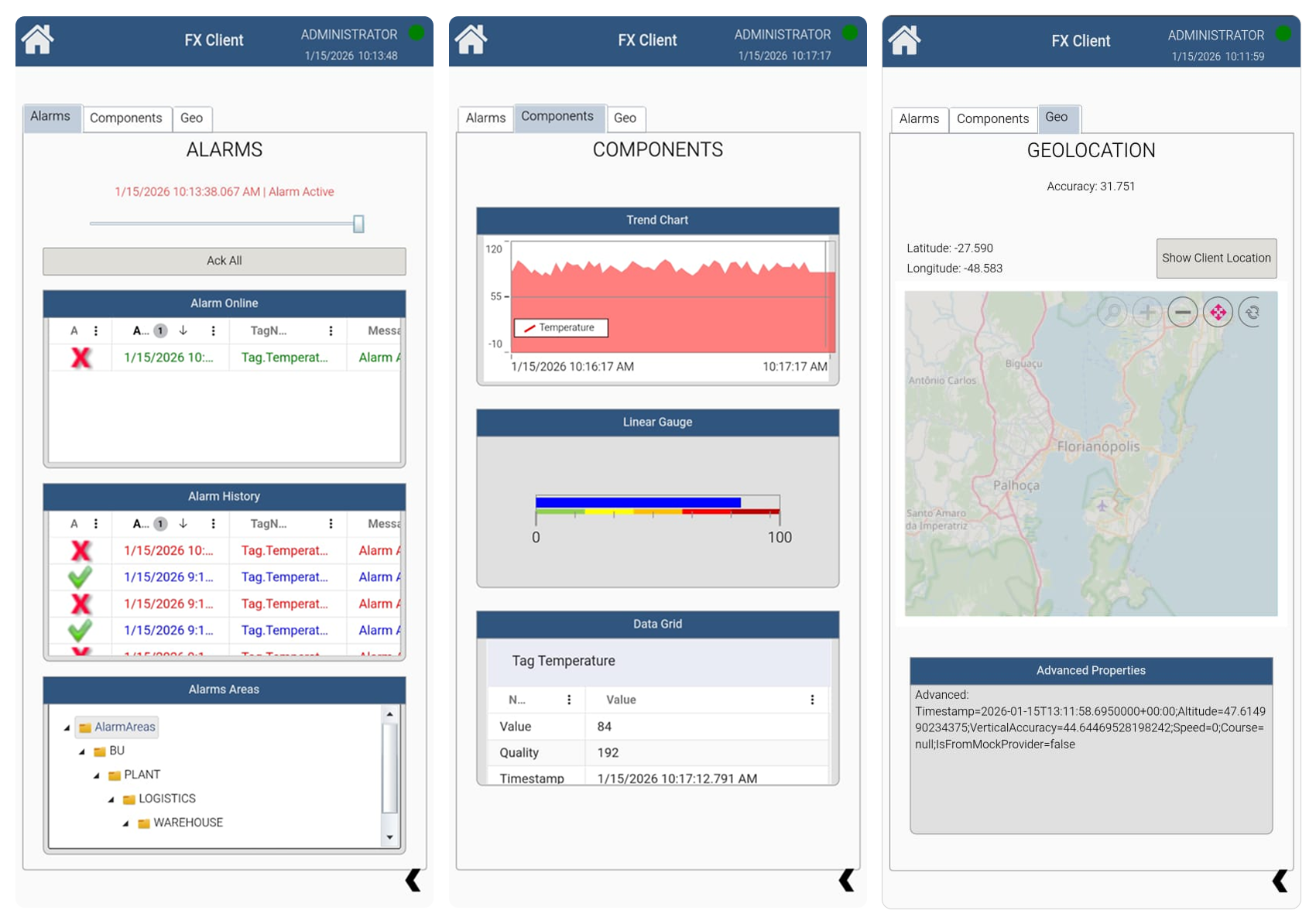
Geo Localization
The geo localization properties return the client user’s latitude and longitude. These values represent the user’s current geographic location and can be used for map positioning or any feature that relies on geolocation.
| Code Block |
|---|
@Client.Session.GeoLocationLatitude;
@Client.Session.GeoLocationLongitude; |
In this section...
| Page Tree | ||
|---|---|---|
|