


Configure your solution’s data foundation to build a knowledge graph
How-to Guides → The Four Pillars How-to → Data Foundation How-to → Unified Namespace How-to → Model Relations How-to
Wire typed graph relations between Tags using Reference members and StartValue, optionally enriched with the /Attr dual-shape pattern. The result is a UNS that doubles as a queryable knowledge graph — visualizable, AI-groundable, and round-trippable with industrial ontologies.
Version 10.1.5+
| Info | ||
|---|---|---|
| ||
This is a step-by-step recipe. It assumes you already understand UserTypes, Tags, and the Asset Tree from the Unified Namespace How-to. For the concepts and column reference, see UNS UserTypes Reference, UNS Tags Reference, and Industrial Ontology Integration How-to. Download the solution: KnowledgeGraphAttr.dbslnKnowledgeGraphAttr.dbsln (10.1.5b) |
Table of Contents maxLevel 2 minLevel 2 indent 10px exclude Overview style none
| Info | ||
|---|---|---|
| ||
In a knowledge graph, nodes are entities and edges are typed relations between them. In FrameworX:
That's the whole mechanism. Steps 1 and 2 build the edge for the Pump → Tank example. Step 3 adds the optional |
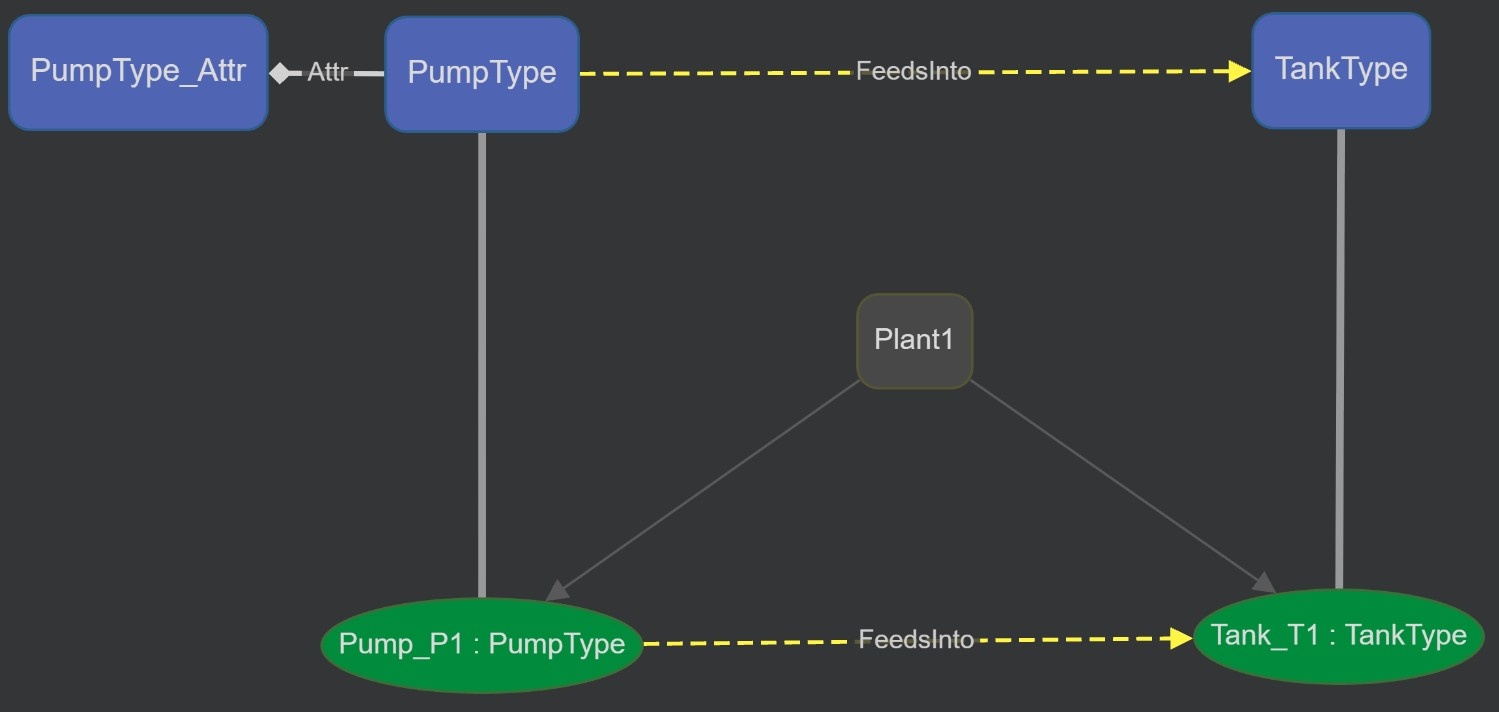
The example
A two-equipment water-treatment line:
| No Format |
|---|
Plant1/Pump_P1 --(FeedsInto)--> Plant1/Tank_T1 |
Pump_P1 fills Tank_T1. Each tag carries live process variables. You will add a typed graph relation between them and, optionally, a /Attr sibling carrying static metadata. End state: a runnable solution and a Knowledge Graph that renders the relation visually.
Prerequisites
- A solution open in the Designer with the Unified Namespace module visible.
- Familiarity with creating UserTypes and Tags — see Unified Namespace How-to.
Step 1 — Create the UserTypes
Two UDTs. The interesting member is FeedsInto on PumpType: declared with Type = Reference, it becomes the graph edge.
PumpType
Member | Type | Parameters | StartValue | Notes |
|---|---|---|---|---|
Flow | Double | Live process value (m³/h) | ||
Status | Text | stopped | Initial state at startup | |
FeedsInto | Reference | TankType | Plant1/Tank_T1 |
Typed pointer at the downstream Tank. See Step 2. |
TankType
Member | Type | StartValue | Notes |
|---|---|---|---|
Level | Double | Live process value (%) | |
Status | Text | idle | Initial state at startup |
Create both via Unified Namespace → UserTypes → New, then add the members in the grid.
For the canonical member-column definitions (every column, every constraint), see UNS UserTypes Reference.
Step 2 — Wire the relation via StartValue
Already done in "Step 1 - Create the UserTypes", this step is only for explanation. A Reference UDT member needs two fields to declare a graph edge. Set them in the member grid:
Field | Purpose | Example value |
|---|---|---|
Parameters | The target UserType — what kind of Tag this Reference is allowed to point at. |
|
StartValue | The target Tag path the Reference resolves to at runtime startup. |
/Attr envelope of the target.
|
In JSON form (for write_objects or copy-paste into a row):
{
  "Name": "FeedsInto",
  "Type": "Reference",
  "Parameters": "TankType",
  "StartValue": "Plant1/Tank_T1/Attr"
}
When the runtime starts, every PumpType instance gets its FeedsInto.Link resolved to Plant1/Tank_T1
automatically. The FrameworX object model now has a typed edge from Pump_P1 to Tank_T1.
| Warningnote | |||
|---|---|---|---|
| |||
A Reference points at the tag that carries the target entity's identity.
Reactor_R101/Attr, not Reactor_R101. The /Attr suffix is stripped on RDF export so the OWL entity
|
| Note | |||
|---|---|---|---|
| |||
StartValue set StartValue declared on the UDT member applies to every instance. If two PumpType tags must feed different Tanks, you currently need per-instance overrides — and per-instance member StartValue is not yet writable from the Tags grid in 10.1.5 (the UI write surface is in-flight; see UNS Asset Tree Reference troubleshooting). For single-instance examples and tutorial scenarios, the UDT-level StartValue used above is sufficient and is the simplest path. For multi-instance solutions today, set the per-instance StartValue via
|
Step 3 — (Optional) Add the
/Attr metadata siblingAttr metadata tag
| Info | ||
|---|---|---|
| ||
|
In this example we add Attr to the equipment — the pump's nameplate. The The /Attr dual-shape pattern stores static, design-sheet-style metadata on a sibling tag — separate from separate tag named Attr, sitting next to the live equipment tag. The naked live tag carries dynamic process variables; the /Attr sibling tag carries fixed literals like Manufacturer, ModelNumber, InstallationDate.
When to use which shape:
Use case | Pattern |
|---|---|
Plain process equipment, no descriptive metadata |
Live tag only |
Conceptual containers (Enterprise, Site, Area) — folders, not equipment |
| |
Equipment + design-sheet metadata + ontology round-trip | Both ( |
live tag + |
|
tag) |
For Pump_P1 to carry both live process data AND nameplate metadata, declare a second UDT:
PumpType_Attr
Member | Type | StartValue | Notes |
|---|---|---|---|
Manufacturer | Text |
Grundfos
Acme Pumps | Fictional vendor — static literal |
ModelNumber | Text |
AP- |
3000 | Fictional model — static |
literal | |||
MaxFlowRate | Double | 50 | Design rating (m³/h) |
Then create a sibling Tag tag at Plant1/Pump_P1/Attr of type PumpType_Attr (see Step 4).For the full dual-shape rationale and the OWL/RDF round-trip semantics
| Info | ||
|---|---|---|
| ||
A folder like |
| Info | ||
|---|---|---|
| ||
On RDF/OWL export the pieces map like this: each UserType becomes an OWL class; a Reference member becomes an owl:ObjectProperty (its Parameters type is the range); a scalar member (Double, Text, …) becomes an owl:DatatypeProperty; each Tag becomes a NamedIndividual. The ISA-95 / ISA-88 levels — Enterprise, Site, Area, Batch — are folders; the folder's |
Step 4 — Create the instance Tags
In Unified Namespace → Asset Tree, create the folder Plant1 and add three tags inside it:
Tag path | Type | Notes |
|---|---|---|
| PumpType | Live pump — carries the FeedsInto edge |
| PumpType_Attr | Optional — static nameplate metadata (Step 3) (this will be a member inside of "PumpType_Attr" UserTypes) |
| TankType | Live tank |
Either : right-click the Plant1 folder → New Tag
and set the Type to the UDT,
ORor paste
a rowrows into the Tags grid with the Name and Type columns set.
The Asset Tree auto-creates the folder hierarchy from the slashes in the tag path.
Step 5 — Verify in the runtime
Start the runtime (F5). With the configuration above, the FrameworX object model now exposesThe resulting Asset Tree:
| No Format |
|---|
@Tag.Plant1/Plant1 +-- Pump_P1 | +-- Attr | | <- PumpType instance (live) @Tag.Plant1/Pump_P1.Flow+-- (T) Manufacturer | | <- Double, live @Tag.Plant1/Pump_P1.Status+-- (D) MaxFlowRate | | <- Text, live @Tag.Plant1/Pump_P1.FeedsInto <- Reference -> Tank_T1 @Tag.Plant1/Pump_P1.FeedsInto.Link <- "`-- (T) ModelNumber | +-- (R) FeedsInto : Plant1/Tank_T1/Attr" @Tag.Plant1/Pump_P1/Attr <- PumpType_Attr instance (static, optional) @Tag.Plant1/Pump_P1/Attr.Manufacturer <- "Grundfos" @Tag.Plant1/Tank_T1 <- TankType instance (live) @Tag.Plant1/Tank_T1.Level | +-- (D) Flow | `-- (T) Status <- Double, live @Tag.Plant1/: stopped `-- Tank_T1.Status <- Text, live |
Quick sanity check from a Script or the runtime monitor:
// Read the resolved target through the Reference
string target = @Tag.Plant1/Pump_P1.FeedsInto.Link;
// Expected: "Plant1/Tank_T1/Attr"

// Read a value of the target tag through the Reference
double level = @Tag.Plant1/Pump_P1.FeedsInto.Value;   // routed to Plant1/Tank_T1
+-- (D) Level       : idle
`-- (T) Status |
Step 5
For the full Reference-tag runtime semantics, see UNS Tags Reference → Reference Type.
Step 6— Visualize with the Knowledge Graph control
- Open Unified Namespace → Asset Tree. Click the Knowledge Graph button at the top of the tree. This regenerates
SolutionSettings.KnowledgeGraphSourcefrom the current UDT + Tag + relation state. - Open or create a Display. From the Components Panel → Charts, drop Knowledge Graph onto the canvas.
- In the control's Properties panel:
- Bind Selected node path to a Tag of type Text (for example
Tag.UI.SelectedNodePath). The control writes the clicked node's full UNS path (dot notation, e.g.Plant1.Tank_T1) into that Tag. - Bind Selected node type to a Tag of type Text (for example
Tag.UI.SelectedNodeType). The control writes the clicked node's UserType name (e.g.TankType) into that Tag.
- Bind Selected node path to a Tag of type Text (for example
- Run the Display. Clicking a node updates the two bound Tags. Wire those Tags to a ChildDisplay source, a Trend Chart, or any other control to drive type-aware drill-down.
The expected render for this example:
| No Format |
|---|
+----------+ FeedsInto +----------+ | Pump_P1 | -------------> | Tank_T1 | | PumpType | | TankType | +----------+ +----------+ |
You now have the complete loop: typed UserTypes, a Reference edge, live instance tags, optional Attr metadata, and a rendered Knowledge Graph. For control configuration depth — render modes, source regenerators, HTML5 / OpenSilver parity, design-time preview semantics — see KnowledgeGraph Control Reference.
What this enables
Once the UNS carries Reference edges (and, optionally, /Attr metadata siblingstags), the same three building blocks — Reference members, StartValue, dual-shape — unlock four capabilities:
- Visualize the plant graph with the Knowledge Graph Display control (Step 6).
- Ground AI queries — the Local AI assistant walks Reference edges to answer questions like "what feeds into this tank?" or "trace upstream of Pump_P1".
- Export to RDF / OWL / JSON-LD / Turtle / N-Triples — see Export your UNS to RDF/OWL/GraphDB. The /trailing
Attrsuffix leaf is stripped dropped on export so OWL entity IRIs match the source ontology. - Re-import enriched ontologies from external authoring tools via Industrial Ontology Integration How-to, with the
SourceIricolumn providing the join key for diff and overlay.
Troubleshooting
Reference member shows no value at runtime. Confirm Parameters is set to the target UserType name (case-sensitive) and , StartValue is the path of an existing Tag, and the target's UserType matches Parameters (or a subclass). The target must exist when the runtime starts; references to missing tags resolve to null.
Knowledge Graph control shows no edges. Click the Knowledge Graph button on the Asset Tree to regenerate KnowledgeGraphSource, or invoke TK.GenerateUnsVisual() from a Script. Edits to UDTs or Tags only refresh the source on the next regeneration; auto-refresh applies on subsequent renders.
Multiple PumpType instances all feed the same Tank. That is expected — UDT-level StartValue applies to every instance. Per-instance override via the Tags grid is in-flight in 10.1.5 — set per-instance StartValue via write_objects (DesignerMCP) or T.Eng.Project (Engineering API) until the UI surface shipsis the shared default. To point one instance elsewhere, set the Reference target on that specific tag; the per-instance value overlays the type default for that instance only. See UNS Asset Tree Reference → troubleshooting for the current status.
OWL round-trip drops the relation. The Reference target must point at the /Attr envelope (Tank_T1/Attr, not Tank_T1). The exporter strips the /Attr suffix on the way out If you used the ontology dual-shape, the Reference must target the identity-bearing node — the Attr tag. The exporter drops the trailing Attr leaf so the OWL IRI is clean; an export that targets the naked tag will not match the round-trip contract documented in . For plain equipment with no Attr tag, target the equipment tag itself. See Industrial Ontology Integration How-to.
See also
- Unified Namespace How-to — basic UNS configuration (prerequisite).
- UNS UserTypes Reference — UDT member-column definitions.
- UNS Tags Reference — Reference Type runtime semantics; ontology columns (
Labels,SourceIri,Attributes). - UNS Asset Tree Reference — dual-shape folder layout; per-instance StartValue status.
- Industrial Ontology Integration How-to — standards coverage; the "Two paradigms" section.
- KnowledgeGraph Control Reference — control properties, source regenerators, render modes.
- Local AI — AI grounding on the UNS graph.
- LocalAI KnowledgeGraph Demo — reference solution exercising every column.
- RDF Triples and the Industrial Ontology Foundry (IOF) — the triples model behind the round-trip.
In this section...
| Page Tree | ||
|---|---|---|
|