


Overview
The WebBrowser control embeds a full modern browser inside a FrameworX display. On the WPF runtimes (Windows, RichClient, SmartClient) it uses the Chromium-based WebView2 engine; on the HTML5/Web client it runs via OpenSilver as an embedded web frame. It accepts three content sources — a URL, a tag value containing HTML, or inline HTML — and exposes a JavaScript bridge (window.RW) that lets embedded HTML, SVG, or React components read FrameworX tags in real time.
Typical uses:
- Embedding an existing web page or intranet dashboard inside an HMI display (URL mode).
- Rendering a hand-authored HTML/CSS/SVG mockup with live tag values baked in (HTML mode with
data-rw-tagattributes). - Hosting a small React component that reacts to tag updates via hooks (HTML mode with React CDN +
RW.useTag). - Driving display content dynamically from a tag whose value is an HTML string (Tag mode).
<ac:structured-macro ac:name="info"> ac:rich-text-body
This control supersedes the legacy HTML5Control component. New work should use WebBrowser; existing HTML5Control instances continue to run but should be migrated when convenient.
</ac:rich-text-body> </ac:structured-macro>
Requirements
Runs on two runtimes:
- Windows / RichClient / SmartClient — all three are WPF runtimes (SmartClient is the ClickOnce-deployed variant of the WPF client). All use embedded WebView2 and the full feature set of this control applies. WebView2 Runtime must be present on the target machine; it is shipped with modern Windows and installed by the FrameworX installer on older machines.
- HTML5 / Web client — the FrameworX display runs in the browser via OpenSilver compiled to WebAssembly. The WebBrowser control maps to an OpenSilver web frame (iframe) embedded in the page. When the embedded content lives on a different origin than the host page, the host's
Content-Security-Policy: frame-ancestorsresponse header may need to be adjusted to allow framing. TheRWJavaScript bridge anddata-rw-tagbinding target feature parity with the WPF runtime on the HTML5 client; see HTML5 client parity below for current status.
Configuration
- Go to Displays / Draw.
- In the Components panel, select Viewer, then WebBrowser.
- Drop it onto the Draw area.
- Double-click the control to open its configuration dialog.
- Choose WebContentsSource and supply the matching content field (see the three modes below).
Properties
| Property | Type | Description |
|---|---|---|
WebContentsSource | Enum: Url, Tag, Html | Selects the content source. See the three modes below. |
LinkedValue | String with expressions | Used by Url mode (the URL) and Tag mode (the tag reference whose value is an HTML string). Supports tag expressions such as @Tag.Reactor1.ReportUrl. |
HtmlContent | String | Used by Html mode. Full HTML, a fragment, an SVG document, or a React-bearing page. May contain data-rw-tag attributes for automatic live binding. |
AutoWrapHtml | Boolean (default true) | When true, fragments and bare SVG are wrapped in a minimal HTML document automatically. Set to false if you are supplying a complete <!DOCTYPE html> document and want no wrapping. |
EnableBrowserStorage | Boolean (default false) | When true, HTML content is served to the embedded browser through a virtual host (https://twebcontent.local/) instead of NavigateToString. This gives the content a proper browser origin so localStorage, sessionStorage, and other origin-dependent APIs work. Leave off unless the embedded content actually needs these APIs. |
Background, Foreground, BorderBrush, BorderThickness | Color / Thickness | Standard theming. Omit colors to inherit from the active theme. |
The three content modes
1. URL mode
Embed an external web page. Set WebContentsSource = Url and put the address in URL (stored as LinkedValue). The value supports tag expressions, so the URL can be computed at runtime from tag values:
text https://reports.example.com/asset/{@Tag.Asset.Id}/summary
Useful for intranet dashboards, live reports, external documentation, and anything that already exists as a web page.
2. Tag mode
The HTML is supplied by a tag whose value is an HTML string. Set WebContentsSource = Tag and put the tag expression in String{With Tags} (stored as LinkedValue). The control reloads the HTML whenever the tag value changes.
Useful when the same display needs to show different content per asset, per recipe, or per operator role, and that content is produced by a ScriptTask, imported from a database, or delivered via an MQTT payload.
3. HTML mode
Inline HTML (or SVG, or a React-bearing page) is stored directly on the control. Set WebContentsSource = Html and paste the content into HtmlContent. This is the mode used for hand-authored mockups, Claude Design exports, and in-display React components.
HTML mode recognizes several content shapes automatically:
- Full HTML document (
<!DOCTYPE html>…) — rendered as-is. - HTML fragment (a bare
<div>…) — wrapped in a minimal HTML document whenAutoWrapHtmlis on. - SVG document (starts with
<svg) — recognized as SVG and rendered natively by Chromium. - React-bearing page — when the content pulls in React (via CDN
<script>tags), the control's tag binder recognizes React patterns and wires theRWbridge so components can call hooks likeRW.useTag().
The RW JavaScript bridge
At runtime, the control injects a global window.RW object into the embedded page. This is the API that HTML, SVG, or React content uses to read FrameworX tag values. It is available immediately on page load — there is no explicit initialization step.
Declarative binding: the data-rw-tag attribute
The simplest way to bind live values is a plain HTML attribute. Any element with data-rw-tag="TagRef" is automatically bound — its text content is replaced with the live tag value, and the element gets a CSS class reflecting the tag's quality.
html <div class="card"> <h3>Reactor 1</h3> <p>Temperature: <span data-rw-tag="Plant.Reactor1.Temperature">--</span> °C</p> <p>Pressure: <span data-rw-tag="Plant.Reactor1.Pressure">--</span> kPa</p> </div>
No JavaScript required. The initial text (--) is the fallback shown until the first value arrives. Quality classes (rw-quality-good, rw-quality-bad, rw-quality-uncertain) can be styled in CSS if you want color-coded quality indication.
Programmatic access from JavaScript
The RW object exposes these methods:
| Method | Description |
|---|---|
RW.subscribe(tagRef, callback) | Subscribe to a tag. The callback receives (value, quality, timestamp, tagRef) on each update. Returns an unsubscribe function. |
RW.tags.A.B.C | Proxy-style access. Reading RW.tags.Plant.Reactor1.Temperature returns the current value. |
RW.isConnected() | Returns true if the bridge is connected to the FrameworX runtime. |
RW.formatValue(v) | Standard value formatting (returns '--' for null/undefined). |
RW.getQualityClass(q) | Maps a quality code to a CSS class: rw-quality-good, rw-quality-bad, or rw-quality-uncertain. |
Quality codes follow the OPC convention: 192 (0xC0) is Good; values in the 0x00–0x3F range are Bad; the 0x40–0xBF range is Uncertain.
React hooks: useTag and useTags
For React-based content, the bridge exposes hook-style helpers so components re-render when tag values change:
| Hook | Description |
|---|---|
RW.useTag(tagRef) | Returns [value, quality]. The component re-renders on each tag update. |
RW.useTags([refs]) | Returns {ref: {value, quality}, …} for batch subscription. |
Example — a minimal React component embedded in HTML mode:
html <!DOCTYPE html> <html> <head> <meta charset="utf-8" /> <script src="https://unpkg.com/react@18/umd/react.production.min.js"></script> <script src="https://unpkg.com/react-dom@18/umd/react-dom.production.min.js"></script> <script src="https://unpkg.com/@babel/standalone/babel.min.js"></script> </head> <body> <div id="root"></div> <script type="text/babel"> function ReactorCard() { const [temp, quality] = RW.useTag('Plant.Reactor1.Temperature'); return ( <div className={"card " + RW.getQualityClass(quality)}> <h3>Reactor 1</h3> <p>{RW.formatValue(temp)} °C</p> </div> ); } ReactDOM.createRoot(document.getElementById('root')).render(<ReactorCard />); </script> </body> </html>
The control detects when embedded content uses React and wires the bridge so hook calls (RW.useTag, RW.useTags) trigger hook-driven re-renders on tag updates. No extra configuration is required beyond including React via CDN scripts as shown above.
Tag writes from JavaScript
The current release of this control is read-only from JavaScript — embedded content can subscribe to tag values through the RW bridge but cannot write them back. Write-back from embedded HTML/React is a planned feature. Build read-only dashboards, mockups, and visualizations today; designs that need operator-controlled setpoints from embedded content should use native FrameworX input controls (Slider, TextBox, Button with setpoint dynamic) for now.
Design-time preview
In the Designer editor, the control shows a live preview of the configured content:
- URL mode with a static URL — the page is fetched and rendered. A dynamic URL shows a placeholder instead ("Dynamic URL will be resolved at runtime").
- HTML mode — the content is rendered with a mock
RWbridge injected. Alldata-rw-tagelements show placeholder values (12.34) with therw-quality-goodclass, andRW.useTag()/RW.subscribe()calls return the same placeholder data. This lets you verify layout and styling without a running solution. - Tag mode — shows a placeholder ("Content will be loaded from tag at runtime") since the tag value is not available at design time.
Clearing cache
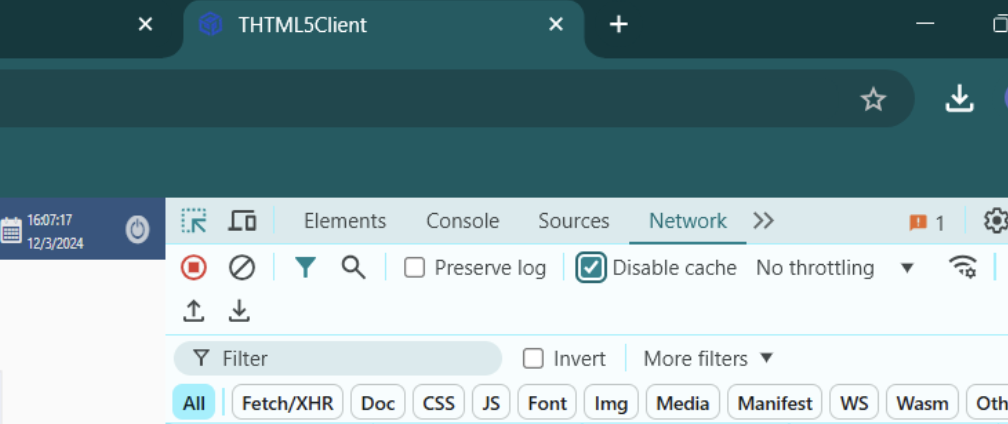
If an HTML5 display using the WebBrowser control fails to load correctly at runtime, clear the WebView2 cache:
- In the embedded browser, open More tools → Developer Tools (F12).
- Open the Network tab.
- Check Disable cache.
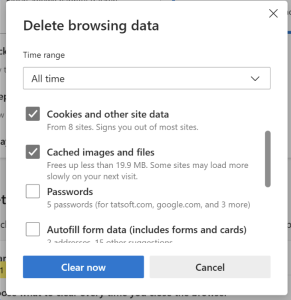
Alternatively, clear cached files from the browser settings.
HTML5 client parity
On the HTML5/Web client (OpenSilver + WebAssembly), the WebBrowser control maps to an OpenSilver web frame rather than an embedded WebView2. URL mode and inline HTML rendering work on both runtimes. The RW JavaScript bridge and data-rw-tag auto-binding target feature parity with the WPF runtime, but parity is an active area — complex React content that works in WPF may need adjustment on HTML5. When authoring embedded web content that must run on both, validate on both runtimes before shipping.
Security considerations
- Content origin. In
Urlmode, the control navigates to whatever URL you supply. Treat it the same as any browser — don't navigate the control to untrusted pages. - Browser storage.
EnableBrowserStoragegives the content a persistent origin. Only turn it on when the embedded content actually useslocalStorage,sessionStorage,IndexedDB, or similar APIs. - CSP on HTML5 deployment. When the hosting page is served to the HTML5 client and the embedded URL is on a different origin, the hosting server's
Content-Security-Policy: frame-ancestorsheader may need to permit framing. Not relevant on the WPF runtime.
When to use which mode
| Situation | Mode |
|---|---|
| Embedding an existing web app, report, or intranet page | URL |
| HTML content that varies per asset / recipe / operator and is generated elsewhere | Tag |
| Hand-authored mockup or Claude Design export, with live tag values | HTML (with data-rw-tag) |
| Small React component reacting to tag updates | HTML (with React + RW.useTag) |
| Custom chart or visualization that FrameworX primitives don't cover | HTML (SVG or Canvas + RW.subscribe) |
Related
- See WPF Client overlay limitations (HWND-hosted controls) for the shared airspace constraint — on the WPF Client, WPF visuals (buttons, popups, headers) cannot overlay this control.
- Skill Display Construction — Embedded Web — workflow guide for using Claude Design output with this control, and for deciding between an embedded-web prototype and native FrameworX elements.
- Skill Display Construction — Basics — the native display authoring baseline (Canvas and Dashboard paradigms, elements, dynamics).
- ChildDisplay Control Reference — for embedding another FrameworX display (rather than web content) inside a display.
Clearing Cache Step by Step
Sometimes when running WeBrowser with a HTML5 display, the connection doesn't load properly. To fix that, as well as other display issues, we recommend clearning the cache from the WebBrowser.
To do that, go to “More tools”, “Development Tools”, “Network”, “Disable Cache”, or, in the browser settings, clear the cached files.
In this section...