


Configure and control all runtime options.
Reference → Solution → Runtime → UI → Startup | Build and Publish | Execution Profiles | Monitor
Runtime Startup (Reference): Configure and control solution execution, specify execution profiles, and customize connection settings for all runtime scenarios.
Access: Runtime → Startup
Main Commands
Execution Controls
| Command | Function | Status Indicators |
|---|---|---|
| Run Startup | Starts the application | Button changes to Stop |
| Stop | Stops the application | Button changes to Run |
| Online Configuration | Apply changes in real-time | Must be connected to runtime |
Note: All changes must be saved before they appear in runtime when online configuration is enabled.
Execution Profiles
Select environment-specific configuration:
| Profile | Purpose | Default Port |
|---|---|---|
| Development | Debugging enabled, dev tools active | 3201 |
| Validation | Testing environment | 3301 |
| Production | Optimized for production | 3101 |
| Custom | User-defined settings | 3401 |
The default port is 3100 + the profile id (Production 0, Development 1, Validation 2, Custom 3). Setting the Port field on a profile overrides the default.
The Production profile uses main configuration without overrides. Other profiles apply configured replacements at startup.
Startup Port Settings
Configure network ports for application access:
| Setting | Description | Default |
|---|---|---|
| Main Port | Primary access port per profile | Profile-dependent |
| Auto Ports | Auto-select if main unavailable | Disabled |
| WA Port | Windows Authentication port | As configured |
| Windows Authentication | Require Windows auth only | Unchecked |
| SSL Port | HTTPS web access | 3111 |
| AutoStartup/Windows Service | Run at system startup. Production profile only | Disabled |
AutoStartup Behavior
Windows Platform:
- Configures as Windows Service
- Starts without user login
- Runs under system account
Multiplatform on Remote Devices:
- Configures in TWebServicesRunPrograms.json
- Starts with TWebServices
- Enables remote management
Enabling AutoStartup
Open Runtime → Startup and set the Execution Profile to Production. AutoStartup is enabled only for the Production profile.
In Startup Port Settings, click Setup next to AutoStart. The AutoStartup Windows Service Settings dialog opens and shows the current status of the service.
Click Apply Settings, then Ok. The runtime is installed as the Windows Service
TStartup-<SolutionName>. Installing a service requires Administrator rights.Check the result in Services.msc: the service is listed with Startup type Automatic (Delayed Start). For the log-on account and the start delay, see Service Security Settings in Runtime Installation Reference.
To remove the service, open the same dialog and click Remove Settings.
Clients are started separately. The service has no user interface, so no display opens when it starts, on the server or on any other computer. To bring clients up automatically at boot, use AutoStartClient: see Installation Folders and Utilities Reference, AutoStartClient.exe.
SSL Certificate Configuration
When an SSL Port is configured, a TLS/SSL certificate is required to serve HTTPS connections on that port. Certificate settings are stored per port in TServer.json — changing the SSL Port number requires reconfiguring the certificate for the new port.
To open the certificate dialog: Click the button next to the SSL Port field.
| Source | Description | Availability |
|---|---|---|
| Certificate File | Load a .pfx or .crt file from the file system | Local and remote |
| Certificate Store | Select a certificate by thumbprint from the Windows local machine store | Local only |
Certificate File mode: Browse for a .pfx or .crt file. For .pfx files, enter the certificate password. When connected to a remote server, the file is uploaded automatically to the Certificates\ subfolder in the server's machine settings directory.
Certificate Store mode: Enter the SHA-1 thumbprint of a certificate already installed in the Windows local machine store. This option is not available when connected to a remote server.
Validate Certificate: Checks the certificate and displays its subject, expiration date, and issuer. Only available when connected to a local server. Validation is required before saving.
Windows Authentication (WA) Configuration
Windows Authentication lets a user sign in to a runtime without typing a username or password, by reusing the Windows session they are already logged into on the client machine. It is intended for installations where the runtime and its clients live inside the same Active Directory domain.
Enabling WA
Under Runtime / Startup, enable WA. Rich Client and Smart Client connections then attach to that port and pass the client's Windows identity to the server instead of credentials. The web client connects via ip. port and wa=true.
How it works
WA does not validate a password — it trusts the Windows/AD logon that the OS already performed. Two preconditions must hold for login to succeed:
- The user must be currently logged into Windows on a machine that can reach the domain controller.
- The user account must exist in Active Directory.
If the AD lookup fails, authentication fails — there is no local-password fallback in WA mode.
Permission resolution
After the AD identity is resolved, the user doesn't have to exist in the solution. Instead, the user's AD group membership is matched against the Windows Group → Permission mappings configured in the Security module (for example, DOMAIN\Engineers → permission Engineering). If a matching permission exists in the solution, the session is granted that permission; otherwise the session falls back to Guest. The session itself is held in memory on the server, WA never writes the user into the Runtime Users database.
WA vs LDAP
LDAP is an interactive flow that collects username and password in the login dialog and forwards them to the directory server for validation, returning the group on success (which then feeds the same permission-mapping step). LDAP therefore works for users who are not currently logged into a Windows domain session, while WA works only for users who already are. WA can be used behind IIS or against a runtime hosted outside IIS — IIS is not a requirement. Refer to Security Runtime Users Reference for more information.
Port conflicts and AutoPorts limits
Auto Ports protects against the most common port collision: two FrameworX runtimes for the same solution trying to bind the same port. When the setting is enabled and another FrameworX runtime on the same solution already holds the configured port, the launcher probes forward and binds the next free port instead. Disabled by default; enable it per profile in the Startup Port Settings above.
What Auto Ports does not cover. The mechanism only detects another live FrameworX runtime. It does not bump the port when:
- A previous FrameworX process died without releasing the port (orphan process).
- The port is held in TCP
TIME_WAIT(about 30 seconds after a clean stop). - A non-FrameworX listener is on the same port (another web server, a debug tool, an unrelated service).
- The runtime was just stopped from inside Designer and an internal reference still pins the prior port.
In any of these cases startup fails with a port-in-use error even with Auto Ports enabled.
Recovery when Auto Ports cannot help
- Identify the process holding the port (PowerShell):
Get-NetTCPConnection -LocalPort <port> | Select-Object OwningProcess
ThenGet-Process -Id <PID>to see what it is. - If it is a stale FrameworX process, end it:
Stop-Process -Id <PID> -Force - If the port is in
TIME_WAIT, wait about 30 seconds and retry the runtime startup. - If a different process owns the port (a non-FrameworX listener you want to keep), change the configured Port on the Runtime Startup page to a free value, or restart Designer to release any ports held by Designer-side helpers.
Command-Line Service Management (TManageServices.exe)
The AutoStartup dialog calls TManageServices.exe, the utility in the product root folder that installs and removes every FrameworX Windows service. To use it from a script (SCCM, Intune, PowerShell, Ansible), see TManageServices CLI. On Linux/Docker, run the runtime with systemd instead (see the Linux/Docker Startup section of Runtime Installation Reference).
For end-to-end IT deployment patterns, see IT Deployment RunBook.
Execution Environment
Execution Path Settings
| Option | Description | Use Case |
|---|---|---|
| Direct File Access | Local file access | Single-user development |
| Solution Server | TWebServices connection | Multi-user collaboration |
| Path/Use Solution Path | Override default path | Redundancy configuration |
DataHub Service
| Setting | Function |
|---|---|
| Publish to DataHub | Share objects with remote DataHub |
| DataHub Settings | Configure connection parameters |
DataHub Settings:
- Alias: Solution identifier
- Primary/Secondary Host: Server addresses
- Port: TCP communication (default: 30001)
- AccessKey: Authentication
Built-in Broker Settings
| Setting | Function |
|---|---|
| Publish to MQTT Broker | Make UNS visible to MQTT clients |
| TMQTT Broker Settings | Configure security and options |
Startup Modules
Select modules to activate at startup:
| Module | Function | Impact |
|---|---|---|
| Devices | Enable device communication | Required for field data |
| Alarms | Enable alarm processing | Required for notifications |
| Historian | Enable data logging | Required for trending |
| Datasets | Enable database access | Required for queries |
| Reports | Enable report generation | Required for documents |
| Scripts | Enable script execution | Required for logic |
| Displays | Launch WPF client locally | Opens TRichClient |
| OpenBrowser | Launch web client | Opens default browser |
| OPC Server | Enable OPC DA/UA server | External access |
Redundancy Settings
Configure high-availability environment:
| Setting | Description | Format |
|---|---|---|
| Primary Server IP/Port | Main server address | IP:Port |
| Secondary Server IP/Port | Backup server address | IP:Port |
| Timeout | Switchover delay | Seconds |
| On Primary Startup | Recovery behavior | Switch/Keep |
| Replication | Data to replicate | Alarm/Tag Historian |
Recovery Options
- Switch back to primary: Auto-return when available. The returning Primary waits as STANDBY for the /TimeAutoSwitch time before it takes over; the history the Secondary recorded meanwhile is replicated to it only during that wait. See Redundancy Reference > Automatic failback and replicated history.
- Keep secondary active: Manual switchback required
Command Lines and URLs
Startup Command Line
TStartup.exe /solution:"path\solution.dbsln" /profile:1 /OnlineConfig:true /port1:3201Parameters:
/solution:- Solution file path/profile:- 1=Dev, 2=Val, 3=Custom/OnlineConfig:- Enable online changes/wa- Windows Authentication/port1:- Override port
Client Access
| Client | Command/URL | Options |
|---|---|---|
| Rich Client | TRichClient.exe /port1:3101 | NoSplash, ViewOnly |
| Smart Client | http://IP:Port/smartclient | SSL available |
| HTML5 Client | http://IP:Port/html5 | SSL available |
Network Access Example
Accessing HTML5 from Other Devices:
- Server IP: 192.168.0.8
- Port: 3201
- URL:
http://192.168.0.8:3201/html5
Direct Monitor Access:
http://ServerIP:Port/html5/?Monitor=RuntimeStartup Procedure
Step-by-Step Process
- Launching TStartup.exe
- Loads the Solution
- Reads Solution Configuration
- Parses Command Line Parameters
- Activates Main Process TServer.exe
- Starting Real-Time Database
- TServer.exe loads objects into memory
- Establishes communication service
- Modules Startup
- Each module reads configuration
- Establishes connection with main process
- Applying Execution Profiles
- Development: Local SQLite database
- Production: SQL server connection
- Designer Connection
- Automatic connection for monitoring
- Client Display Access
- Remote computers can connect
- Online Changes
- Apply without runtime disruption
Platform-Specific Features
Windows-Only Features:
- Windows Authentication
- Windows Service configuration
- OPC Classic support
- Specific security features
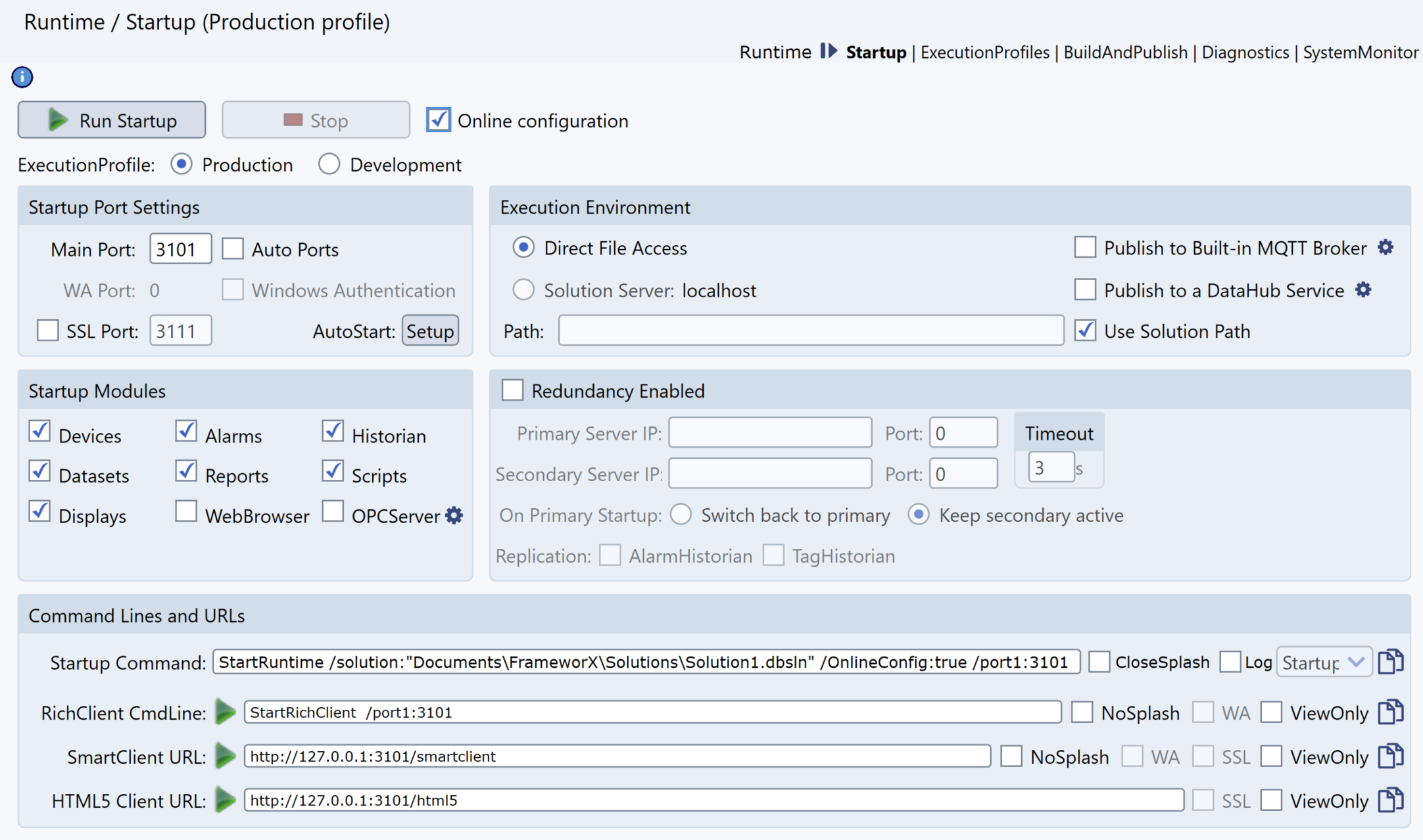
Runtime Startup Page when All Features are enabled
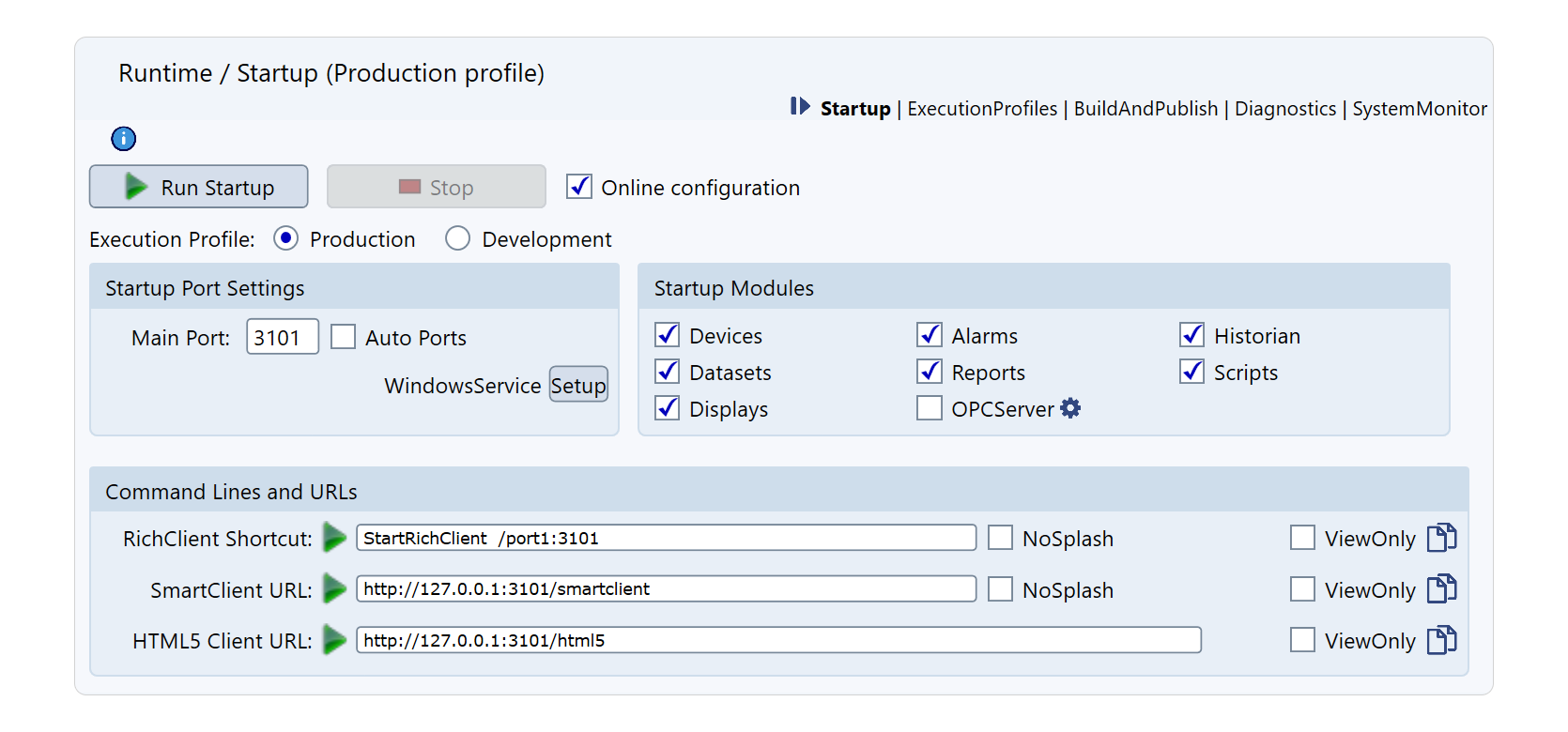
Runtime Startup Page, when Basic Modules Filter is Selected
In this section...