


Linear Gauge Controls allow the visualization of data ranges in a linear format. The customization includes setting gauge orientation, position, linked data, range start and end, scale direction, interval, size, stroke, labels visibility, size, stroke, ticks size, thickness, stroke, pointer type, thickness, stroke, and range segments.
Requirements
This component is Portable. It runs both on Windows and on Web Pages hosted in any platform.
Configuration
- Go to Displays / Draw.
- On the Components Panel, select Gauges, then LinearGauge.
- Click or drag-and-drop it on the Drawing area to use it.
- Double-click the object to open the configuration window.
Linear Gauge configurations encompass settings for General, Scale, Labels, Ticks, Pointer, and Range. General settings include gauge orientation, positions, linked value, range start, and end values. Scale settings involve scale direction, interval, bar size, stroke, border color, and thickness. Label settings cover visibility, size, stroke, prefix, and postfix options. Tick settings define major and minor tick sizes, thickness, stroke, and the number of minor ticks per interval. Pointer settings determine the type, stroke, thickness, height, and width of the pointer. Range settings specify segments, start and end values, color, and boundary width.
General
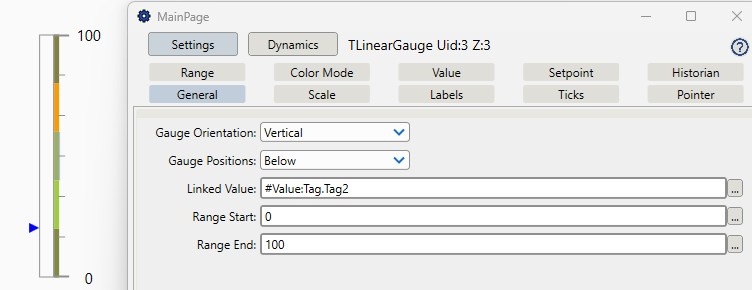
Linear Gauge General settings control the basic appearance and functionality of the gauge. These settings include orientation (horizontal or vertical), position relative to other elements (above or below),specific data value or source link (e.g., "Tag.Level"), and defining the starting and ending values of the gauge range (e.g., 0 to 100).
Field | Description |
|---|---|
Gauge Orientation | Sets the orientation of the gauge. Options include "Horizontal" and "Vertical," allowing the gauge to be displayed either horizontally or vertically. |
Gauge Positions | Sets the position of the gauge relative to other elements. Options include "Above" and "Below," determining whether the gauge appears above or below other components. |
Linked Value | Links a specific data value or source to the gauge. E.g.: "Tag.Level," indicates the gauge will display real-time data from this source. |
Range Start | Defines the minimum value the gauge can represent. Default is 0. |
Range End | Specifies the maximum value the gauge can represent. Default is 100. |
Scale
Linear Gauge Scale settings also manage the scale's direction, interval, size, stroke, border color, and thickness. Users can set the scale direction to forward or backward, define intervals between scale markings, adjust the scale bar size and stroke width, and customize the border's color and thickness to enhance visual clarity.
Field | Description |
|---|---|
Scale Direction | Sets the direction of the scale. Options include "Forward," indicating a normal ascending scale, and potentially "Backward," which would indicate a descending scale. |
Scale Interval | Defines the interval between scale markings, that is, the spacing of the major divisions on the scale. Default is 100. |
Scale Bar Size | Specifies the size of the scale bar, determining the thickness or height of the scale bar. Default is 15. |
Scale Bar Border Thickness | Specifies the thickness of the scale bar border. By default, it is set to "1,1,1,1", which indicates uniform thickness on all sides and affects the visual weight and prominence of the scale bar's border. |
Labels
Linear Gauge Labels Settings handle the visibility, size, stroke, prefix, and postfix of labels. Users can choose to show or hide labels, define their size, adjust the stroke color for emphasis, and add prefixes or postfixes to label values, allowing for clear and customized data representation.
Field | Description |
|---|---|
Labels Visibility | Sets the visibility of the labels. Options include "Visible" to show the labels, or "Collapsed" to hide them. |
Label Size | Defines the font size of the text labels on the gauge. Default is 15. |
Label Postfix | Adds a postfix to the label text. This field is blank by default, allowing the user to add a suffix to each label value if needed. |
Label Prefix | Adds a prefix to the label text. This field is blank by default, allowing the user to add a prefix to each label value if needed. |
Ticks
Linear Gauge Ticks settings specify the dimensions and appearance of major and minor tick marks. These settings include the size, thickness, and stroke color of both major and minor ticks, and the number of minor ticks per interval, enabling precise and detailed scale gradations for better data readability.
Field | Description |
|---|---|
Major Tick Size | Defines the size of the major ticks, that is, it determines the length of the major tick marks on the gauge. Default is 15. |
Major Tick Thickness | Specifies the thickness of the major ticks, that is, it determines the width of the major tick marks. Default is 2. |
Minor Tick Size | Defines the size of the minor ticks, that is, it determines the length of the minor tick marks on the gauge. Default is 7. |
Minor Tick Thickness | Specifies the thickness of the minor ticks. In other words, it determines the width of the minor tick marks. Default is 1. |
Minor Ticks Per Interval | Defines the number of minor ticks per interval. It specifies how many minor tick marks will appear between each pair of major tick marks, allowing for finer granularity. Default is 5. |
Pointer
Linear Gauge Pointer Settings determine the type and appearance of the gauge pointer. Users can choose between a bar pointer or symbol pointer, and adjust the stroke color and thickness for the bar pointer, or define the height, width, and stroke color for the symbol pointer, ensuring the pointer is clearly visible and fits the gauge design.
Field | Description |
|---|---|
Pointer Type | Sets the type of pointer used in the gauge. Options include "Bar Pointer" and "Symbol Pointer." |
Bar Pointer Stroke | Adjusts the stroke (outline) color of the bar pointer. This option is available only if "Bar Pointer" is selected as the pointer type. |
Bar Pointer Thickness | Specifies the thickness of the bar pointer. This option is available only if "Bar Pointer" is selected as the pointer type. |
Symbol Pointer Height | Defines the height of the symbol pointer. This option is unlocked and available if "Symbol Pointer" is selected as the pointer type. |
Symbol Pointer Width | Defines the width of the symbol pointer. This option is unlocked and available if "Symbol Pointer" is selected as the pointer type. |
Symbol Pointer Stroke | Adjusts the stroke (outline) color of the symbol pointer. This option is unlocked and available if "Symbol Pointer" is selected as the pointer type. |
Range
Linear Gauge Range Settings configure specific segments of the gauge. Users can enable or disable each range segment, set the starting and ending values for each segment, assign different colors to segments, and define the start and end width of each segment's boundaries, allowing for distinct and visually segmented data representation.
Field | Description |
|---|---|
Range | Indicates the specific range segment. The user can enable or disable each range by marking the checkbox next to the range entry. |
Range Start and End | Defines the starting and ending values for each range segment. This setting determines the minimum and maximum values for each color segment of the gauge. |
Color | Specifies the color for each range segment. This setting allows the user to visually differentiate between various segments of the gauge. |
Start and End Width | Defines the width of the start and end points of each range segment. This setting determines the thickness of the segment boundaries on the gauge. |
Conditional | Only show color when live value reaches this range |
Color Mode | Active the color from "Color" field when the value was Reached, when ReachedOrHigher or ReachedOrLower. Interacts with the ColorMode configuration tab. Static will have the color selected in "Color" field always on. |
Color Mode
Linear Gauge Color Mode settings control how the gauge bar is colored. Users can select between a static color or a dynamic color mode driven by range segments, and define a neutral color to be displayed when the value is within a normal or inactive state.
Field | Description |
|---|---|
Color Mode | Sets the coloring behavior of the gauge bar. Options include "Static," which applies a single fixed color, and dynamic modes that change color based on configured range segments. |
Neutral Color | Defines the color displayed when the gauge value is in a neutral or normal state. Used when the "Range tab > Conditional field" tab is true and it didn't reach the dynamic configured in "Range tab > Color Mode field" |
Value
Linear Gauge Value settings control how the current value is displayed on the gauge. Users can show or hide the value, pin it near the pointer, define its numeric format, configure out-of-range (OOR) text and color, and customize the font size and color of the value label.
Field | Description |
|---|---|
Show Value | Toggles the visibility of the current value label on the gauge. When checked, the value from "General tab > Linked Value field" is displayed. The value is shown below the bar. |
Value Near Pointer | When checked, the value label is rendered adjacent to the pointer position rather than at a fixed location. |
Value Format | Defines the numeric format string for the displayed value. E.g., "F2" displays the value with two decimal places. |
OOR Text | Specifies the text displayed when the value is out of range defined in "General tab > Range Start and Range End fields". Default is "OOR." |
Value Font Size | Sets the font size of the value label. Default is 14. |
Value Color | Defines the color of the value label text. |
OOR Color | Specifies the color of the value label when the value is out of range. Default is red. |
Setpoint
Linear Gauge Setpoint settings configure a visual setpoint indicator on the gauge. Users can enable or disable the setpoint marker, define its value, choose the pointer shape, set its size, customize fill and stroke colors and thickness, and optionally show a label next to the setpoint marker.
The Setpoint marker serves as a reference indicator on the gauge scale, visually distinct from the value pointer. It marks a specific threshold value where a defined behavior or automated action is expected to occur, for example, when a tank level reaches 40%, a pump may turn on automatically. Unlike the value pointer, the Setpoint does not move with the current reading, although it can be moved dynamically; it remains fixed at the configured value to provide a constant visual reference for operators.
Field | Description |
|---|---|
Show Setpoint | Toggles the visibility of the setpoint indicator on the gauge. When checked, the setpoint marker is displayed. |
Setpoint Value | Defines the value at which the setpoint marker is positioned on the gauge scale. Default is 40. |
Pointer Type | Sets the shape of the setpoint marker. Options include "Diamond" and other pointer shapes available in the dropdown. |
Pointer Size | Specifies the size of the setpoint pointer marker. Default is 12. |
Fill Color | Defines the fill color of the setpoint pointer marker. |
Stroke Color | Specifies the outline (stroke) color of the setpoint pointer marker. |
Stroke Thickness | Sets the thickness of the setpoint pointer marker outline. Default is 1. |
Show SP Label | When checked, a label is displayed next to the setpoint marker to identify it on the gauge. |
Historian
The Historian bar is rendered as an overlay directly on the gauge scale, visually distinct from the main value bar. It represents a historical data range — for example, the minimum and maximum values recorded over the last two hours — displayed as a shaded band on the gauge, giving operators an immediate visual reference of how the value has behaved over time without leaving the screen.
The Historian Min and Historian Max fields accept tag bindings, meaning the range boundaries are dynamic. The logic for calculating those boundaries — such as querying the historian for the lowest and highest values in the last two hours — must be implemented in a Script Task that writes the results to the bound tags, which the gauge then reads automatically.
Field | Description |
|---|---|
Historian Min | Defines the minimum value of the historical data range displayed on the gauge. |
Historian Max | Defines the maximum value of the historical data range displayed on the gauge. |
Bar Color | Sets the color of the historian range bar overlay. |
Bar Opacity | Specifies the opacity of the historian bar, from 0 (transparent) to 1 (fully opaque). Default is 0.35. |
Bar Thickness | Defines the thickness of the historian bar in pixels. Default is 6. |
Bar Position | Sets the position of the historian bar relative to the gauge scale. Options include "Inside" and potentially "Outside." |
Label Text | Specifies a text label displayed alongside the historian bar to identify it. |
Label Font Size | Sets the font size of the historian bar label. Default is 11. |
Label Color | Defines the color of the historian bar label text. |
Alarm Linear Gauge
The Alarm_Linear_Gauge symbol is available in FrameworX 10.1.5.x and later. If you are running an earlier version, please update your installation.
Download demo solution: Alarm_Linear_Gauge.dbsln (version 10.1.5.2043)
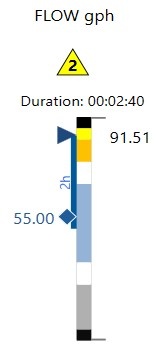
The Alarm LinearGauge extends the standard LinearGauge with alarm management capabilities built on the ISA-101 HMI standard. The goal is to give operators a richer, more immediate understanding of a process variable's state, not just its current value, but its alarm condition, recent behavior, and whether any automatic protective action has already been triggered.
Six elements were added on top of the base control:
Alarm Symbol — An ISA-101 compliant symbol rendered alongside the gauge that uses geometric shapes (triangles for process alarms, rectangles for system states), a priority number, and standardized colors to communicate alarm severity at a glance. Operators can instantly identify the priority of an alarm without relying solely on the pointer position.
Alarm Colors — Color zones that appear directly on the gauge bar when the live value enters an alarm region. High and Low alarms are shown in orange; HiHi and LoLo alarms are shown in yellow. These colors only appear when the value actually reaches the threshold, making it immediately obvious that an alarm condition is active.
Historian Bar — A semi-transparent blue bar overlaid on the gauge scale showing the min/max range of the process variable over the last two hours. This gives operators a quick sense of how the variable has been behaving over time without opening a trend chart. The min and max boundaries are driven by tag bindings, and the logic to compute them must be implemented in a Script Task that queries the historian and writes the results to those tags. (Code example below)
Alarm Duration — A label displayed above the gauge showing how long the current alarm has been active. This helps operators assess urgency and decide whether escalation is needed.
Interlocks — Visual indicators at the high and low extremities of the gauge scale that signal when a process interlock has been triggered for that variable, meaning the control system has already taken automatic protective action. This helps operators distinguish between a value in an alarm region versus one where the system has already responded.
Setpoint — A diamond-shaped marker positioned on the gauge scale to indicate a target or threshold value for the process variable. Following ISA-101 High Performance Graphics conventions, the diamond shape was chosen specifically to be visually distinct from both the value pointer and the alarm indicators, making it immediately recognizable as a reference point rather than a live reading. The setpoint does not move; it remains fixed at the configured value so operators always have a clear visual anchor for where the process should be operating or where a specific automated action is expected to occur. This is consistent with the HPG principle of reducing cognitive load by encoding meaning through shape, not just color.
The Alarm LinearGauge symbol looks like this:
Importing the Symbol
1 - Go to Displays / List and select the display you want to add that symbol.
2 - In the left menu you go to Symbols > Library and search for Alarm_Linear_Gauge
3 - Click the symbol, then click on the drawing area to place it.
If the tag you select have LoLo, Lo, Hi and HiHi alarms, the symbol should be ready to use. Otherwise it will be necessary to edit the symbol for your needs.
Configuration
Once the Alarm LinearGauge symbol is imported into the solution, double-click it to open the Symbol Links configuration and map each parameter to the appropriate tags or values for your application.
Parameter | Description |
|---|---|
AlarmTag | The process variable tag that drives the alarm state, colors, duration, and alarm symbol behavior. |
BlueMin / BlueMax | Represents the normal operating range, displayed as the blue overlay on the gauge bar. |
DurationMin / DurationMax | Tags that receive the historian query results (minimum and maximum values) written by the historian Script Task. |
InterlockMin / InterlockMax | The scale values at which the interlock indicators are rendered at the low and high extremities of the gauge. |
RangeStart / RangeEnd | The minimum and maximum values of the gauge scale. |
SetPoint | Tag or value that defines the position of the diamond-shaped setpoint marker on the gauge. |
TextLabel | A descriptive label displayed on the gauge to identify the process variable. E.g., "FLOW gph". |
The symbol is ready to use as-is if the selected tag in AlarmTag has LoLo, Lo, Hi, and HiHi alarms configured. If your tag uses a different alarm structure, you will need to edit the symbol to match your configuration.
Historian and alarm duration calculations require Script Tasks to be configured separately. See the Historian and Duration Scripts section below.
You can use a tag to dynamically change the values for any of the properties above.
Historian and Duration Scripts
The Historian and Alarm Duration calculations are implemented as Script Tasks rather than directly on the display. Since displays run on a single thread, performing database queries or time calculations there would impact rendering performance. Running these scripts on separate tasks keeps the display responsive and ensures the gauge updates without affecting the UI thread.
This script queries the historian database for the minimum and maximum values of the process variable over the last two hours, using the current UTC time as the upper boundary. The result is written to two tags (e.g., Tag.Tag1_Min and Tag.Tag1_Max which are bound to the Historian Min and Historian Max properties of the gauge. This is what drives the blue historical range bar on the gauge scale.
DateTime utcNow = DateTime.UtcNow;
DateTime twoHoursAgo = utcNow.AddHours(-2);
long ticksNow = utcNow.Ticks;
long ticksTwoHoursAgo = twoHoursAgo.Ticks;
string tableName = "Table1";

@Dataset.Query.AlarmLinearGauge.SqlStatement = $@"
    SELECT MIN(Tag1) AS MinValue, MAX(Tag1) AS MaxValue
    FROM {tableName}
    WHERE UTCTimestamp_Ticks >= {ticksTwoHoursAgo}
      AND UTCTimestamp_Ticks <= {ticksNow}";

var dataset = await @Dataset.Query.AlarmLinearGauge.SelectCommandAsync();

var row = dataset.Rows[0];
@Tag.Tag1_Min = Convert.ToDouble(row["MinValue"]);
@Tag.Tag1_Max = Convert.ToDouble(row["MaxValue"]);


}
This script checks the current alarm state of the process variable and retrieves the timestamp of when that alarm became active. It then calculates the elapsed time and writes it in {hh:mm:ss} format to a tag (e.g., Tag.TimeElapsed bound to the Duration display on the gauge. If no alarm is active, the tag is set to "None".
DateTimeOffset activeTime = DateTimeOffset.MinValue;
if(@Tag.Tag1.AlarmState == 7) //LoLo
{
	activeTime = @Tag.Tag1.LoLo.ActiveTime;
}
if(@Tag.Tag1.AlarmState == 3) //Lo
{
	activeTime = @Tag.Tag1.Lo.ActiveTime;
}
if(@Tag.Tag1.AlarmState == 9) //Hi
{
	activeTime = @Tag.Tag1.Hi.ActiveTime;
}
if(@Tag.Tag1.AlarmState == 25) //HiHi
{
	activeTime = @Tag.Tag1.HiHi.ActiveTime;
}
if(@Tag.Tag1.AlarmState != 0) //Duration Calc
{
	TimeSpan elapsed = DateTimeOffset.Now - activeTime;
	@Tag.TimeElapsed = $"{(int)elapsed.TotalHours:D2}:{elapsed.Minutes:D2}:{elapsed.Seconds:D2}";
}
if(@Tag.Tag1.AlarmState == 0) //No Alarm
{
	@Tag.TimeElapsed = "None";
Replace the tag names by the tags from your solution.
Runtime Execution
The LinearGauge Control provides a visual representation of data ranges in a linear manner. Users can customize the gauge by setting its orientation, position, and the data it is linked to. The control allows for detailed adjustments including the start and end of the range, scale direction, interval, and size. Additionally, users can modify the appearance of labels, ticks, pointers, and range segments in terms of size, thickness, and stroke. This level of customization ensures that the LinearGauge Control can be tailored to fit the specific needs of any application that requires linear data display.

In this section...