


A ComboBox graphical element allows users to select items from a predefined list.
Requirements
This component is Portable. It runs both on Windows and on Web Pages hosted in any platform.
Configuration
- Go to Displays / Draw.
- On the Components Panel, select Interaction, then ComboBox.
- Click or drag-and-drop it on the Drawing area to use it.
- Double-click the component to open the configuration window.
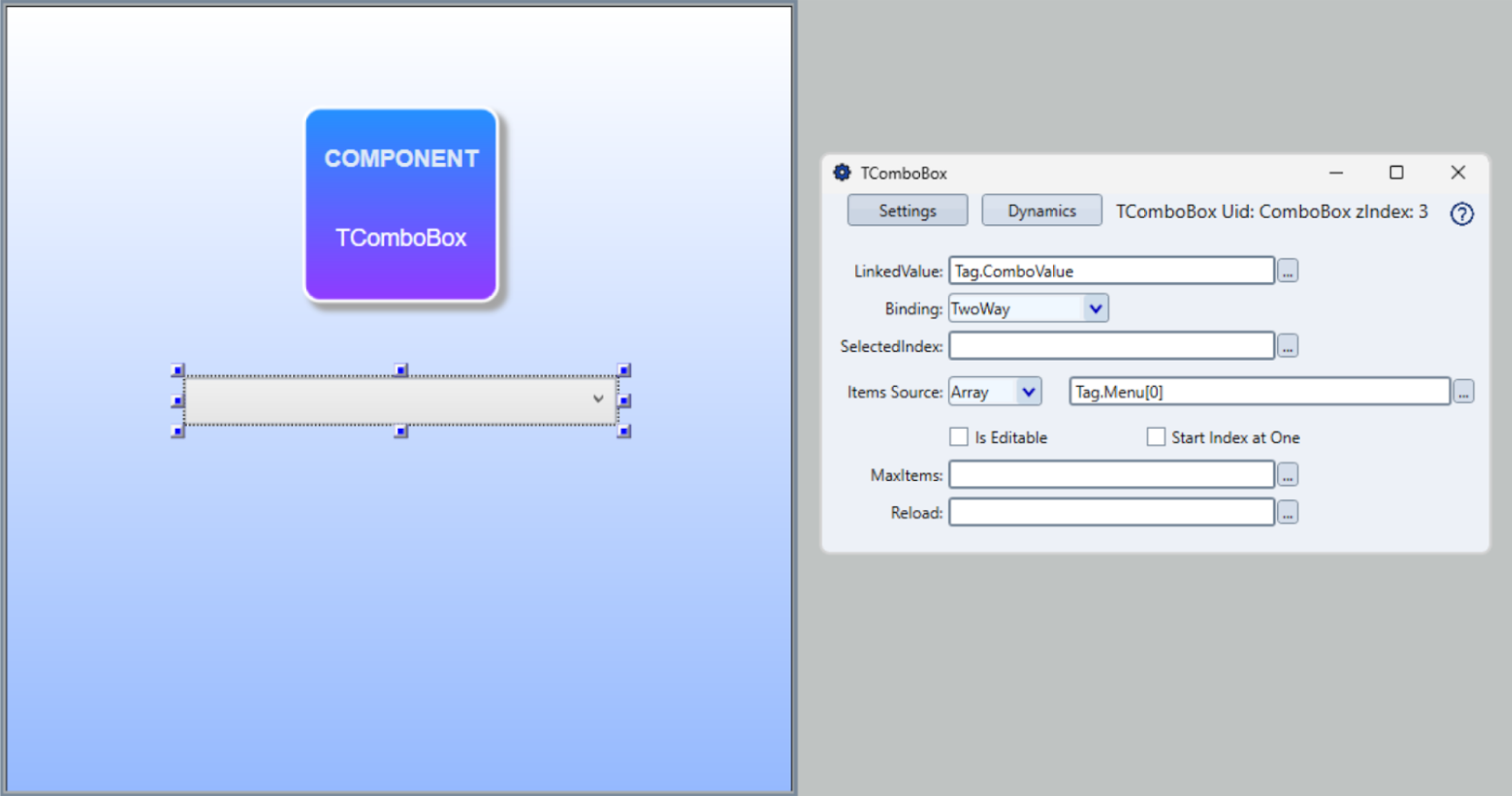
Combo Box Settings | |
|---|---|
Field | Description |
LinkedValue | Specifies the variable or tag to which the ComboBox is bound. |
Binding | Sets the binding mode for the component. Options are: TwoWay: Updates the data source and UI interchangeably; OutputOnly: Allows data output without user input; InputOnly: Accepts user input without updating the data source. |
SelectedIndex | Specifies the index of the currently selected item in the ComboBox. When the LinkedValue tag holds a value with no item in the list, the SelectedIndex is ignored. See LinkedValue and SelectedIndex below. |
Items Source | Determines the source of the items displayed in the ComboBox. Options are: Designer: Allows the ComboBox to display a list of simple text items separated by ';' semi-colon, configured in the designer. e.g: Item1;Item2;Item3;Item4 StringTag: Tag with ComboBox items separated by ';' semi-colon. Similar to the Designer, but instead of having the items configured in the Designer, it can be configured dinamically using a value of a tag Text datatype. ArrayTag: Allows the ComboBox to display items from an array. DataTable: Allows the ComboBox to display items from a collection of objects.. |
Is Editable | From version 10.1.6a, lets the operator type a value in the field, or pick an item from the list. A typed value outside the list goes to the LinkedValue tag and does not join the list. See Editable ComboBox below. |
TagArray index starts at one | When mapping to ArrayTags, sets the index counting to start at one instead of zero when checked. |
Reload | Tag that triggers a reload of the items. Whenever the value of this tag changes, the ComboBox reads its Items Source again and rebuilds the list, with the display still open. See Reloading the Items below. |
DataTable Items Source
When using a DataTable as the Items Source, the value can be from a DatasetQuery, or a DatasetTable, a DataTable Tag, or an Array Tag of UserTypes.
When using Dataset Table or Queries, there is no needing to call the Select(), the ComboBox will call the Select() to the Table or Query when initializing.
In order to define which column from the Database will populate the ComboBox, there are 2 options:
- Using the DisplayMemberPath and SelectedValuePath
- Using the Element UId or First Column
DisplayMemberPath and SelectedValuePath
The DisplayMemberPath is the name of the Column in the source table, that will populate the ComboBox.
TheSelectedValuePath is the name of the Column in the source table, that will be assigned to the LinkedValue when the selection changes.
When both elements are defined, and the source table contains those columns, the system uses this configuration to populate the ComboBox. Otherwise it will use the UId of the element, or the
Element Uid or First Column
The UId is the element identification defined in the Properties SideBar.
If there is a column in that table that matches that Uid, the contents of that column, converted to string, is used to populate the ComboBox.
When that column is not found, the first column is used.
Reloading the Items
The ComboBox reads its Items Source when the display opens. To refresh the list while the display stays open, set the Reload field to a tag.
- Reload takes a tag, not a script method. Any change in the value of that tag reloads the list. The new value itself does not matter.
- Changing the Items Source alone does not refresh the list. The list is rebuilt only when the Reload tag changes.
- With the StringTag option, an empty source value clears the list. A value containing only spaces produces a single blank item.
- When the Binding is InputOnly, the Reload field has no effect.
Example
- Create a Text tag Items with the value
A1;A2;A3, and an Integer tag RefreshItems. - Set the ComboBox Items Source to StringTag, pointing to
Tag.Items, and set Reload toTag.RefreshItems. - At runtime, change Items to
B1;B2;B3;B4. The list still shows A1, A2, A3. - Change RefreshItems (for example, from 0 to 1). The list now shows B1, B2, B3, B4, without closing the display.
LinkedValue and SelectedIndex
When both fields are bound to tags, picking an item writes its text to the LinkedValue tag and its position to the SelectedIndex tag, and a change in either tag updates the selection. The LinkedValue takes priority in these cases:
- When the SelectedIndex tag is -1 and the LinkedValue tag holds a value, the ComboBox selects the item with the LinkedValue, or shows no item, and writes the matching index. It does not write its first item over the LinkedValue, so a value typed in an editable ComboBox stays in the tag, also for other ComboBoxes bound to the same tags. When the LinkedValue tag is empty, the ComboBox opens on its first item.
- When the LinkedValue tag holds a value with no matching item in the list, the ComboBox ignores its SelectedIndex tag, also when the display opens or reloads. It shows no item, or the value itself when it is editable, and writes neither tag. Two ComboBoxes with different item lists on the same tags keep the value when it is missing from one of the lists, and do not rewrite each other’s tags. To select an item by index in this case, write the LinkedValue tag too, or, for a Text tag, clear it to an empty text first.
- A LinkedValue tag never written and without a start value counts as empty for these rules, and the SelectedIndex selects the item. A value set by a start value, a device, a script or an operator counts as a value, 0 included.
- The second rule applies to the Designer, StringTag and ArrayTag sources, and to a DataTable without DisplayMemberPath and SelectedValuePath. With DisplayMemberPath and SelectedValuePath, or with an Enumeration, the SelectedIndex selects the item.
Editable ComboBox
With Is Editable checked, the operator types in the field, on the desktop client and on web pages.
- Typing the text of an item selects the item. Typing a value outside the list writes the value to the LinkedValue tag and -1 to the SelectedIndex tag. The value does not join the list.
- Matching ignores case: typing pump selects the item Pump. On the desktop client, the field also proposes the rest of the first item that starts with the typed letters, highlighted. Enter, Tab or a click elsewhere on the display accepts the proposed item, and Backspace or Delete removes the proposal and keeps only what you typed. The web client does not propose items.
- Without a LinkedValue tag, the ComboBox accepts only items from the list, and a value outside the list returns to the last written value.
- The ComboBox writes the value when the operator presses Enter or Tab, moves to another input field, picks an item, or closes the list. It does not write on each keystroke.
- With the list closed, the ComboBox also writes the value before an action runs: a button, shape or symbol with an action, a hotkey, or the OK button of a dialog. The action reads the new value. On the desktop client, a click elsewhere on the display writes the value too.
- Escape, with the list open or closed, returns the field to the last written value without writing.
- With Binding set to OutputOnly, or when the Security settings of the ComboBox deny the current user, the field is read-only.
- When the Security settings of the ComboBox require an electronic signature, the press of an action opens the signature prompt and does not run the action. After the signature, the ComboBox writes the value, and the operator presses again to run the action. While an earlier signature is still valid (TimeoutMinutes in the security policy), no prompt opens, and the action runs at once with the new value. See Security Policies Reference.
Runtime Execution
When users select an item from a combo box, the application updates to reflect the chosen option. This selection changes the displayed data or configuration settings according to the user's choice. The combo box helps users choose from predefined options, such as a machine type or report format.
In this section...