


Interact with UI via CodeBehind scripts.
How-to Guides → Solution Examples → Feature Examples → User Interactions Examples → CodeBehind UI Access Example
This page shows how to manage and interact with display objects from CodeBehind using Draw, Dynamics, and scripts. It covers getting a reference to an object by its unique identification number (Uid), moving it within the display, and accessing its properties via script. It explains both the general GetControl method and the typed getters such as GetDataGrid, and notes the limitation of the #Source property, which currently cannot be accessed through the code.
Getting a reference to an object
From CodeBehind you get a live reference to any element on the current display by its Uid. There are two ways to do it, and which one you use decides whether you need a cast.
GetControl (works for any element)
GetControl is the universal accessor. It returns the element as a base control type, so you cast it to the element's real type with as:
private Rectangle statusRect;

public void DisplayOpening()
{
	statusRect = this.CurrentDisplay.GetControl("22") as Rectangle;
	statusRect.Fill = Brushes.Green;
}
Use the same pattern for controls that have no dedicated getter, such as the trend chart:
TTrendChart trend = this.CurrentDisplay.GetControl("trendUid") as TTrendChart;
Typed getters (common controls)
Common controls have a dedicated getter that returns the concrete type directly, so no cast is needed:
TDataGrid grid = this.CurrentDisplay.GetDataGrid("gridUid");
These typed getters are convenience wrappers over GetControl that perform the cast internally. Others follow the same shape, for example GetAlarmWindow, GetDataGridWindow, and GetFormControl.
Cast or no cast
- The method returns a base type (
GetControl) → you cast, e.g.... as TTrendChart. - The method returns the specific type (
GetDataGridreturnsTDataGrid) → no cast.
This is standard C#: a cast is only needed when the compiler does not already know the exact type.
Discovering the available accessors
IntelliSense in the code editor is the fastest way to discover what's available — use it instead of memorizing names:
- Control types — at the start of a line, press Ctrl + Space to list every type you can declare or cast to:
Rectangle,Ellipse,TAlarmViewer,TDataGrid,TTrendChart, and more. - Accessor methods — type
this.CurrentDisplay.to list every accessor:GetControlplus each typed getter (GetDataGrid,GetAlarmWindow, …), each shown with its return type.
Treat both lists as the authoritative set for your installed version.
Good practice
- Address elements by Uid (Draw → Properties → Uid). Set a friendly Uid for readability.
- Cache the reference in a field inside
DisplayOpening(); do not re-fetch it every scan inDisplayIsOpen(). GetControlreturnsnullwhen the Uid or type does not match, so check for null before use.
Example: moving an object by its Uid
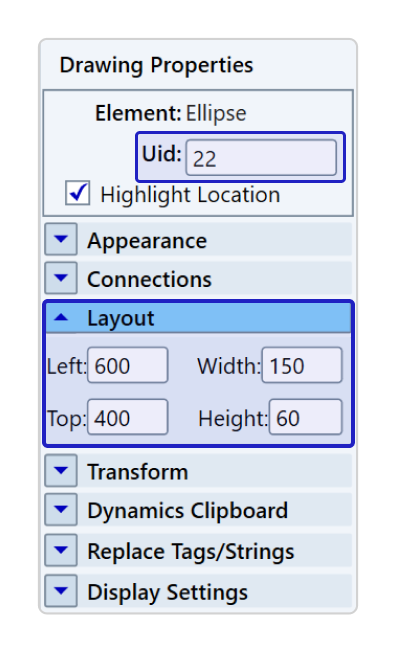
Identify the object by Type and Uid
To differentiate the objects being used in a Solution, it's important to identify the information presented in the Draw, such as the Type, which refers to the object type, and the Uid, representing the unique identification number of the object.
In the Layout box, you can move the object to the desired location on the display according to the desired width and height, as shown in the image below:
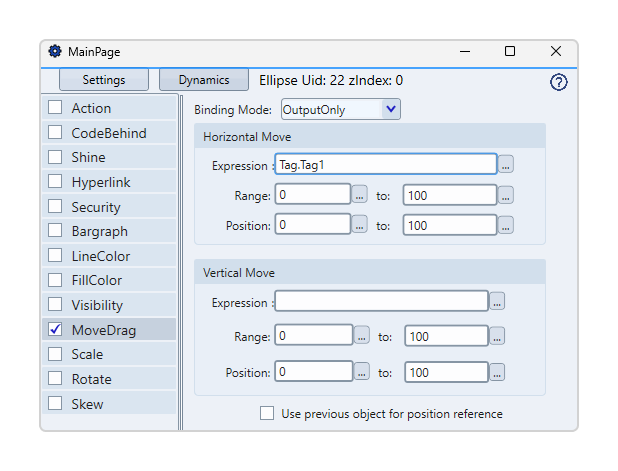
In the Dynamics / Config / MoveDrag tab, you can use a reference tag to move the object. In this way, when the tag value is changed, either through the use of a BarGraph or a script, the object will move on the display as desired.
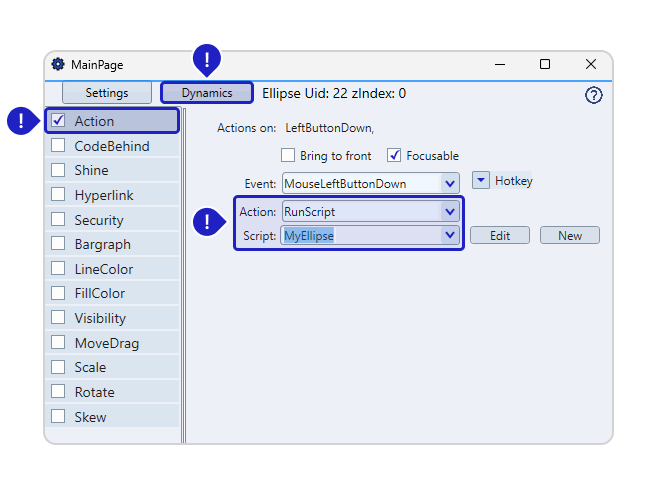
- Click on the desired object in the Draw (in this case, the Ellipse), in Dynamics / Action.
- Select the Action / RunScript option.
- In CodeBehind, you can use the following syntax as a reference to identify the Uid of the selected object when the Solution is running:
private Ellipse MyEllipse;

//Note that for each object, it is necessary to use this public void again

public void MouseLeftButtonDown1 (object sender, System.Windows.Input.InputEventArgs e)
{
	string Uid = "22";
	fe(Uid) ;
}

public void MouseLeftButtonDown2 (object sender, System.Windows.Input.InputEventArgs e)
{
	string Uid = "44";
	fe(Uid);
}

public void fe (string ReceivedUid)
{
	this.MyEllipse = this.CurrentDisplay.GetControl (ReceivedUid) as Ellipse;
	MyEllipse.Margin = new Thickness (@Tag.Left, @Tag.Top, 0, 0);

	@Info.Trace(MyEllipse.Uid);
}
You can also read the object's Uid directly from the event instead of hard-coding it. Use the sender parameter to get the object that raised the event, for example string uid = (sender as Ellipse).Uid;, so one method can serve several objects. Consider the syntax below:
public void MouseLeftButtonDown1 (object sender, System.Windows.Input.InputEventArgs e)
{
	var obj = sender as Ellipse;
	fc(obj);
}


public void MouseLeftButtonDown2 (object sender, System.Windows.Input.InputEventArgs e)
{
	var obj = sender as Ellipse;
	fc(obj);
}

public void MouseLeftButtonDown3 (object sender, System.Windows.Input.InputEventArgs e)
{
	var obj = sender as Ellipse;
	fc(obj);
}

public void fc(Ellipse obj)
{
	obj.Margin = new Thickness(@Tag.Left, @Tag.Top, 0, 0);
	@Info.Trace (obj.Uid);
}
Handling Unavailable #Source in Code
To create a symbol and access its properties via a script, place a created symbol on the screen with a specific Uid and access its properties via the code.
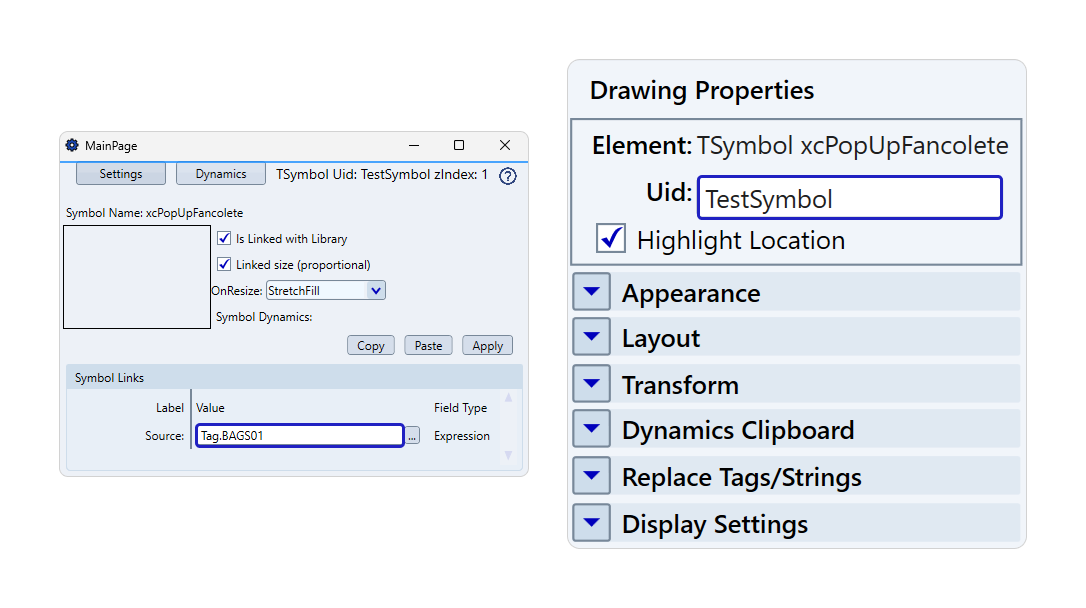
You can control the symbol created on the screen through its Uid using the GetControl method. Here's an example of how to do this using Code Behind:
TSymbol s = this.CurrentDisplay.GetControl("SymbolUID") as TSymbol;
In the code above, we are locating the symbol created on the screen through its Uid and defining it as an object for the variable s. Thus, when you type "s.", it will be possible to access all the properties of the symbol.
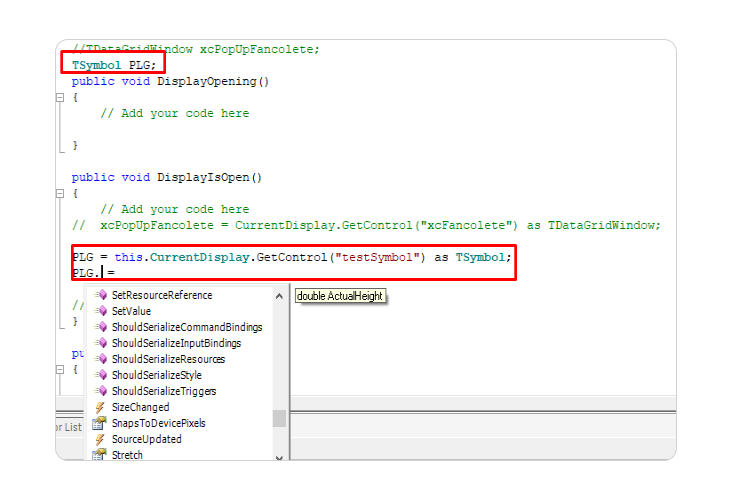
Please note that the #Source property is not currently accessible via the code.
In this section...