


The Asset Tree is a feature for asset modeling, allowing the creation of a semantic layer that organizes data into meaningful groups. Its purpose is to manage large, complex data with clear organization and easy navigation. The main functionalities include hierarchical structuring and semantic grouping of data. Applications include organizing industrial assets for monitoring and maintenance. Use by defining the asset model in UnifiedNamespace / AssetTree to establish the asset structure.
Using the TAssetsTree, users can visually manage their assets, apply filters, and customize the display to suit specific needs, ensuring that relevant information is easily accessible and manageable.
Requirements
Defining the asset model in UnifiedNamespace / AssetTree is the only requirement to use it. This component is Portable. It runs both on Windows (WPF) and on Web Pages hosted in any platform.
Configuration
- Go to Displays / Draw.
- On the Components Panel, select Modules, then AssetsTree.
- Click or drag-and-drop it on the Drawing area to use it.
- Double-click the component to open the configuration window.
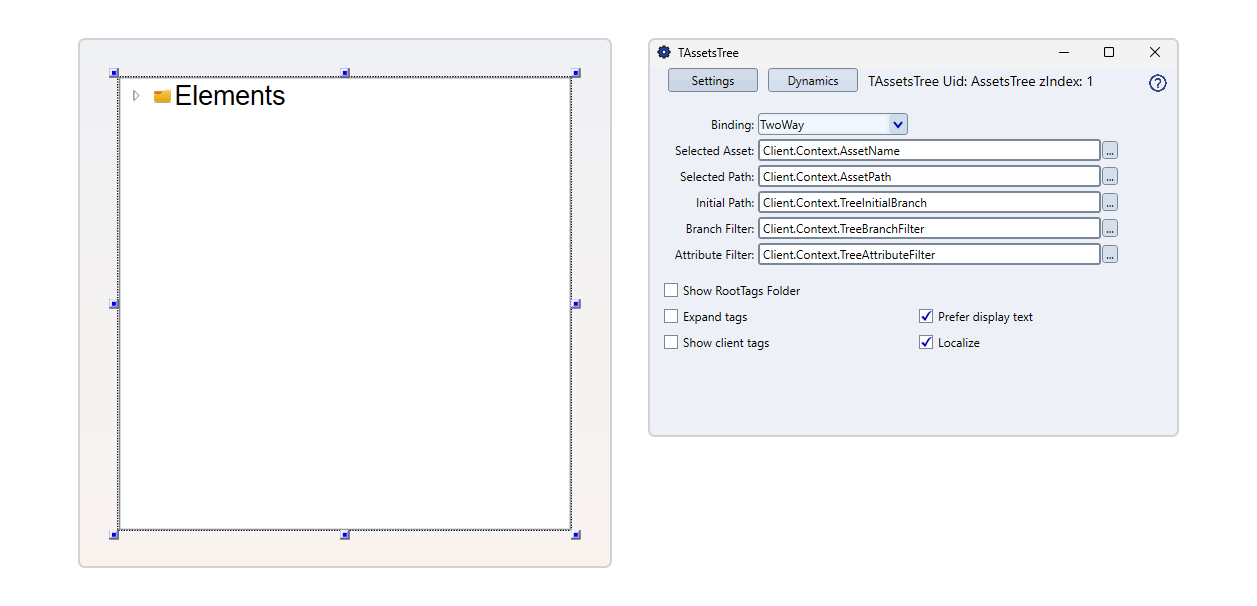
The parameters are described as follows:
AssetsControl Configuration | |
|---|---|
Binding | Determines the binding mode for the selected component. Options include:
|
Selected Asset | Tag that will be receiving the selected Asset Name in Runtime as a String. |
Selected Path | Enables setting a specific path within the asset tree, guiding users to the desired location. |
Initial Path | Defines the initial path displayed when the asset tree is first loaded, providing a starting point. In the Designer configuration window this field is labeled Initial Branch — it is the same property. |
Branch Filter | Filters the branches displayed in the asset tree based on specified criteria, helping to manage large datasets. See Filtering the Tree below for the syntax. |
Attribute Filter | Filters assets based on specified attributes, allowing users to narrow down the displayed assets. See Filtering the Tree below for the syntax. |
UserType Filter | From FrameworX 10.1.6a. Shows only the tags of the listed types and the folders leading to them. Link it to a Tag whose value lists one or more type names, such as |
Show 'Root Tags' On Folder | By default, all common type Tags (Integer, Digital, Text, etc) are added to the Root. By unchecking this option you can filter these elements out. |
Expand Tags | Flag that indicates if multi-level Tags can be expanded (Templates, Arrays). If unchecked, only the main Tag will be in the Asset Tree. |
Show Client Tags | Flag to define if client domain Tags will be displayed in Runtime. If unchecked, only server domain Tags will show up. |
Prefer Display Text | Flag to indicate if the text that will show up in the Tree is the TagName or its Alias (defined in Unified Namespace / Asset Tree / DisplayText). If checked and the column is empty, the TagName will be used. |
Localize | If checked, Tag Names (or aliases) can be translated to different languages according to your solution dictionary's settings. |
Filtering the Tree
The Initial Path, Branch Filter and Attribute Filter fields are bound to Tags and read at runtime, so changing a Tag value rebuilds the tree live. Both filters use the wildcard rules described at the end of this section and are case-insensitive.
Initial Path
An asset path (for example Plant/Line1). The tree roots at that branch instead of the Unified Namespace top: only nodes below it are shown, and that branch becomes the top level. Bind it to a Tag written by another control (for example a line-selection combo) so the same Display can be reused for any branch.
Note: in the Designer configuration window this field is labeled Initial Branch; the property is the same.
Branch Filter
Filters the branch nodes (folders), one segment per level, with segments separated by /. An empty segment means no filter at that level.
Value | Result |
|---|---|
| Level 1 shows only branches starting with "Tank". |
| Level 1: starts with "Line"; Level 2: no filter (empty segment); Level 3: starts with "Tank". |
Attribute Filter
Filters the leaf nodes (asset attributes and tags). Unlike Branch Filter, it is a single pattern applied to every leaf, not one segment per level. Do not use / here — it is matched as literal text.
Value | Result |
|---|---|
| Shows only leaves containing "Temp". |
| Shows only leaves ending with "Current". |
UserType Filter
From FrameworX 10.1.6a. A Tag whose value lists type names separated by commas or semicolons, for example Motor,Pump or Motor;Double. A type name is a UserType name or a built-in tag type such as Digital, Integer, Double or Text. While the Tag holds a name, the tree shows the tags whose own type is one of the listed types, and the folders on the path to them. The match uses the whole type name and ignores letter case. An array tag matches by the type of its elements. A tag shown by the filter keeps all of its members and nested objects. The filter works together with Initial Path, Branch Filter and Attribute Filter, and a tag must pass all of them. Changing the Tag value refreshes the tree, and an empty value turns the filter off.
Wildcard rules
Both filters are case-insensitive and use * as a wildcard:
Value | Matches |
|---|---|
| Name contains "Motor". |
| Name starts with "Motor". |
| Name ends with "Motor". |
| Name contains "Motor". |
Runtime Execution
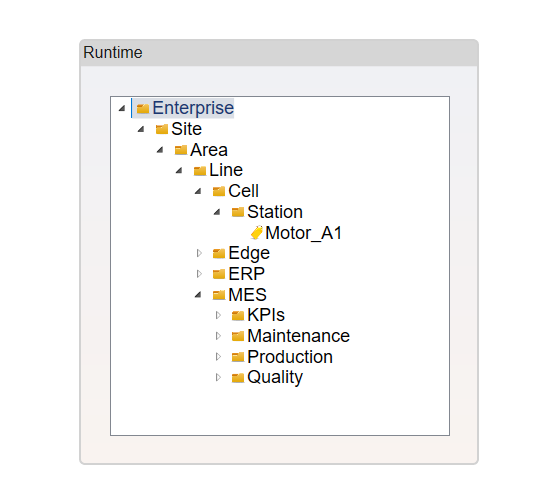
The AssetsTree Control organizes and manages large datasets by creating a semantic layer. It allows users to visually manage assets, apply filters, and customize the display for easy navigation and clear organization.
In a production environment, the AssetsTree Control can be used to monitor and maintain industrial assets. For instance, an operator can filter assets based on specific attributes to quickly locate and address issues within the asset hierarchy.
In this section...